---
title: "Chart API"
description: "Look up the G2 Chart API for chart creation, Spec configuration, rendering, data updates, events, node queries, and destruction."
language: "en"
canonical: "https://g2.antv.antgroup.com/en/manual/api/"
version: "5.4.8"
---
[Resource index](/llms.txt)
## Creating Visualizations
### new Chart()
```sign
new Chart(params: ChartCfg) => View;
```
Creates a Chart object.
```js
const chart = new Chart({
container: 'container',
width: 640,
height: 480,
});
```
### ChartCfg.container
<description> _string | HTMLElement_ **optional** </description>
Specifies the DOM container for chart rendering. Accepts either a DOM ID or DOM element instance.
```js
// Pass DOM id
const chart = new Chart({
container: 'container',
});
// Pass DOM instance
const container = document.createElement('div');
const chart = new Chart({
container,
});
// Get default container
const chart = new Chart();
chart.options({});
chart.render();
return chart.getContainer();
```
### ChartCfg.autoFit
<description> _boolean_ **optional** _default:_ `false`</description>
Whether the chart auto-adapts to container dimensions. Default `false` requires manual width/height setting. When `autoFit: true`, automatically uses container dimensions while respecting user-defined height.
### ChartCfg.clip
<description> _boolean_ **optional** _default:_ `false`</description>
Whether to clip graphics exceeding the drawing area.
With `clip = false`, out-of-bound graphics remain visible:
```ts
import { Chart } from '@antv/g2';
const chart = new Chart({
container: 'container',
});
chart.options({
type: 'view',
data: [
{ year: '1991', value: 3 },
{ year: '1992', value: 4 },
{ year: '1993', value: 3.5 },
{ year: '1994', value: 5 },
{ year: '1995', value: 4.9 },
{ year: '1996', value: 6 },
{ year: '1997', value: 7 },
{ year: '1998', value: 9 },
{ year: '1999', value: 13 },
],
encode: { x: 'year', y: 'value' },
scale: { x: { range: [0, 1] }, y: { domainMin: 6, nice: true } },
});
chart.options({
type: 'view',
children: [
{
type: 'line',
labels: [{ text: 'value', style: { dx: -10, dy: -12 } }],
},
{ type: 'point', style: { fill: 'white' }, tooltip: false },
],
});
chart.render();
```
Set `clip = true` to enable clipping. Adjust `inset` if points get clipped:
```ts
import { Chart } from '@antv/g2';
const chart = new Chart({
container: 'container',
clip: true,
inset: 20,
});
chart.options({
type: 'view',
data: [
{ year: '1991', value: 3 },
{ year: '1992', value: 4 },
{ year: '1993', value: 3.5 },
{ year: '1994', value: 5 },
{ year: '1995', value: 4.9 },
{ year: '1996', value: 6 },
{ year: '1997', value: 7 },
{ year: '1998', value: 9 },
{ year: '1999', value: 13 },
],
encode: { x: 'year', y: 'value' },
scale: { x: { range: [0, 1] }, y: { domainMin: 6, nice: true } },
children: [
{
type: 'line',
labels: [{ text: 'value', style: { dx: -10, dy: -12 } }],
},
{ type: 'point', style: { fill: 'white' }, tooltip: false },
],
});
chart.render();
```
### ChartCfg.width
<description> _number_ **optional** _default:_ `640` </description>
Chart width.
### ChartCfg.height
<description>_number_ **optional** _default:_ `480` </description>
Chart height.
### ChartCfg.depth
<description> _number_ **optional** _default:_ `0` </description>
Chart depth for 3D visualizations.
### ChartCfg.padding
<description> _'auto' | number_ **optional** _default:_ `'auto'`</description>
Sets chart padding using CSS box model conventions.
```js
const chart = new Chart({
container: 'container',
width: 1000,
height: 500,
padding: 20,
});
```
 ### ChartCfg.margin
<description> _number_ **optional** _default:_ `16`</description>
Sets chart margin using CSS box model .
```js
const chart = new Chart({
container: 'container',
width: 1000,
height: 500,
margin: 20,
});
```
### ChartCfg.inset
<description> _number_ **optional** _default:_ `0`</description>
Sets breathing space around chart area.
```js
const chart = new G2.Chart({
container: 'container',
width: 1000,
height: 500,
inset: 20,
});
```
See [Chart Layout](/en/manual/core/chart/chart-component/#%E5%9B%BE%E8%A1%A8%E5%B8%83%E5%B1%80) for layout details.
### ChartCfg.renderer
<description>_[Canvas](https://www.npmjs.com/package/@antv/g-canvas) | [SVG](https://www.npmjs.com/package/@antv/g-svg) | [WebGL](https://www.npmjs.com/package/@antv/g-webgl)_ **optional** _default:_ [Canvas](https://www.npmjs.com/package/@antv/g-canvas) </description>
Specifies rendering engine (default: Canvas). For SVG/WebGL, import respective packages:
```js
import { Chart } from '@antv/g2';
import { Renderer as SVGRenderer } from '@antv/g-svg';
import { Renderer as WebGLRenderer } from '@antv/g-webgl';
const chart = new Chart({
container: 'container',
// Alternatively, you can choose the WebGLRenderer. If not specified, the default will be CanvasRenderer.
renderer: new SVGRenderer(),
});
```
See [renderer](/en/manual/extra-topics/plugin/renderer/) for renderer details.
### ChartCfg.theme
<description> _'classic' | 'classicDark' | 'academy' | customTheme_ **optional**</description>
Configures chart theme. Register custom themes using `register` :
```ts
import { Light, register, Chart } from '@antv/g2';
// define theme
function CustomTheme() {
const light = Light();
return {
...light,
category20: [
'#FFC0CB',
'#A2F5E8',
'#D4B0FF',
'#FFF3A3',
'#9AD6E3',
'#FFD8B1',
'#C3E6B4',
'#E8CFF8',
'#FFB7A0',
'#B8D0EB',
'#F5E6C3',
'#EED5B7',
'#C5D4EB',
'#D9C2F0',
'#D4EDC9',
'#B8E0A8',
'#EFD3A7',
'#F7CBD4',
'#F7ABD4',
'#F0E6E6',
],
};
}
// register theme
register('theme.custom', CustomTheme);
const chart = new Chart({
container: 'container',
theme: { type: 'custom' }, // use theme
});
chart.options({
type: 'interval',
data: {
type: 'fetch',
value:
'https://gw.alipayobjects.com/os/bmw-prod/fb9db6b7-23a5-4c23-bbef-c54a55fee580.csv',
},
encode: { x: 'letter', y: 'frequency', color: 'letter' },
axis: { y: { labelFormatter: '.0%' } },
});
chart.render();
```
### ChartCfg.plugins
<description> _any[]_ **optional**</description>
Specify the plugins to be used during rendering. As a flexible extension mechanism, plugins allow users to enhance G2's functionality, such as creating hand-drawn-style charts.
```js
import { Plugin } from '@antv/g-plugin-rough-canvas-renderer';
const chart = new Chart({
container: 'container',
plugins: [new Plugin()],
});
```
Accessibility's text search functionality can also be achieved through plugins.
```ts
import { Plugin } from '@antv/g-plugin-a11y';
const plugin = new Plugin({ enableExtractingText: true });
const chart = new Chart({
container: 'container',
plugins: [plugin],
});
```
### ChartCfg.margin
<description> _number_ **optional** _default:_ `16`</description>
Sets chart margin using CSS box model .
```js
const chart = new Chart({
container: 'container',
width: 1000,
height: 500,
margin: 20,
});
```
### ChartCfg.inset
<description> _number_ **optional** _default:_ `0`</description>
Sets breathing space around chart area.
```js
const chart = new G2.Chart({
container: 'container',
width: 1000,
height: 500,
inset: 20,
});
```
See [Chart Layout](/en/manual/core/chart/chart-component/#%E5%9B%BE%E8%A1%A8%E5%B8%83%E5%B1%80) for layout details.
### ChartCfg.renderer
<description>_[Canvas](https://www.npmjs.com/package/@antv/g-canvas) | [SVG](https://www.npmjs.com/package/@antv/g-svg) | [WebGL](https://www.npmjs.com/package/@antv/g-webgl)_ **optional** _default:_ [Canvas](https://www.npmjs.com/package/@antv/g-canvas) </description>
Specifies rendering engine (default: Canvas). For SVG/WebGL, import respective packages:
```js
import { Chart } from '@antv/g2';
import { Renderer as SVGRenderer } from '@antv/g-svg';
import { Renderer as WebGLRenderer } from '@antv/g-webgl';
const chart = new Chart({
container: 'container',
// Alternatively, you can choose the WebGLRenderer. If not specified, the default will be CanvasRenderer.
renderer: new SVGRenderer(),
});
```
See [renderer](/en/manual/extra-topics/plugin/renderer/) for renderer details.
### ChartCfg.theme
<description> _'classic' | 'classicDark' | 'academy' | customTheme_ **optional**</description>
Configures chart theme. Register custom themes using `register` :
```ts
import { Light, register, Chart } from '@antv/g2';
// define theme
function CustomTheme() {
const light = Light();
return {
...light,
category20: [
'#FFC0CB',
'#A2F5E8',
'#D4B0FF',
'#FFF3A3',
'#9AD6E3',
'#FFD8B1',
'#C3E6B4',
'#E8CFF8',
'#FFB7A0',
'#B8D0EB',
'#F5E6C3',
'#EED5B7',
'#C5D4EB',
'#D9C2F0',
'#D4EDC9',
'#B8E0A8',
'#EFD3A7',
'#F7CBD4',
'#F7ABD4',
'#F0E6E6',
],
};
}
// register theme
register('theme.custom', CustomTheme);
const chart = new Chart({
container: 'container',
theme: { type: 'custom' }, // use theme
});
chart.options({
type: 'interval',
data: {
type: 'fetch',
value:
'https://gw.alipayobjects.com/os/bmw-prod/fb9db6b7-23a5-4c23-bbef-c54a55fee580.csv',
},
encode: { x: 'letter', y: 'frequency', color: 'letter' },
axis: { y: { labelFormatter: '.0%' } },
});
chart.render();
```
### ChartCfg.plugins
<description> _any[]_ **optional**</description>
Specify the plugins to be used during rendering. As a flexible extension mechanism, plugins allow users to enhance G2's functionality, such as creating hand-drawn-style charts.
```js
import { Plugin } from '@antv/g-plugin-rough-canvas-renderer';
const chart = new Chart({
container: 'container',
plugins: [new Plugin()],
});
```
Accessibility's text search functionality can also be achieved through plugins.
```ts
import { Plugin } from '@antv/g-plugin-a11y';
const plugin = new Plugin({ enableExtractingText: true });
const chart = new Chart({
container: 'container',
plugins: [plugin],
});
```
 For more information on plugin usage, see [plugin-rough](/en/manual/extra-topics/plugin/rough/) and [plugin-a11y](/en/manual/extra-topics/plugin/a11y/).
## Configuring the Chart
G2 provides an imperative Functional API for defining charts. Here's an example of declaring the simplest bar chart:
```ts
import { Chart } from '@antv/g2';
// Initialize the chart instance
const chart = new Chart({
container: 'container',
});
// declare the visualization
chart.options({
// Create an Interval mark
type: 'interval',
data: [
// Bind the data
{ genre: 'Sports', sold: 275 },
{ genre: 'Strategy', sold: 115 },
{ genre: 'Action', sold: 120 },
{ genre: 'Shooter', sold: 350 },
{ genre: 'Other', sold: 150 },
],
encode: {
// Encode data to the x channel
x: 'genre',
// Encode data to the y channel
y: 'sold',
},
});
// Render the visualization
chart.render();
```
The Functional API is built on top of the Spec API. Simply put, each `Chart` instance has an `options` object. The Functional API generates this `options` object through a series of methods, while the Spec API directly sets it. Regardless of which API you use, G2 ultimately renders the current `options`. Therefore, both APIs are equally capable of defining visualizations.
---
**Setting Properties**
### chart.options()
Retrieve or set the overall chart configuration, known as the Spec.
```js
// Retrieve configuration
chart
.point()
.data({
type: 'fetch',
value:
'https://gw.alipayobjects.com/os/basement_prod/6b4aa721-b039-49b9-99d8-540b3f87d339.json',
})
.encode('x', 'height')
.encode('y', 'weight')
.encode('color', 'gender');
console.log(chart.options());
// Set configuration
chart.options({
type: 'point',
autoFit: true,
data: {
type: 'fetch',
value:
'https://gw.alipayobjects.com/os/basement_prod/6b4aa721-b039-49b9-99d8-540b3f87d339.json',
},
encode: { x: 'height', y: 'weight', color: 'gender' },
});
```
---
**Creating Composite Containers**
In G2, the Spec is essentially a hierarchical **View Tree**, consisting of various nodes. Each node is defined by `node.type`, which determines its role, and nesting can be achieved through `node.children`.
A "view" can be simply understood as a chart, or a **Single View Plot**. This "tree" uses different container nodes to manage charts in time and space, enabling the creation of **Multiple View Plots**.
For example:
```js
({
type: 'spaceFlex',
children: [
{
type: 'view',
children: [{ type: 'line' }, { type: 'point' }],
},
{
type: 'interval',
},
],
});
```
The hierarchy can be declared programmatically using the API by adding specific _child_ nodes to a _parent_ using the syntax `parent.[child]()`. The above hierarchy can be expressed as follows:
```js
const spaceFlex = chart.spaceFlex();
const view = spaceFlex.view();
view.line();
view.point();
spaceFlex.interval();
```
### chart.view()
Add a [view](/en/manual/core/view/) to the chart.In G2, a View is used to render multiple marks. A View possesses its own coordinate system and serves as the smallest unit for applying interactions.
```js
const spaceFlex = chart.spaceFlex();
const view = spaceFlex.view();
view.line();
view.point();
```
### chart.spaceLayer()
Add a [spaceLayer](/en/manual/core/composition/space-layer/) composite container.`spaceLayer` does not divide the space in any way; multiple views share the same spatial area, which is often used for view overlapping.
For more information on plugin usage, see [plugin-rough](/en/manual/extra-topics/plugin/rough/) and [plugin-a11y](/en/manual/extra-topics/plugin/a11y/).
## Configuring the Chart
G2 provides an imperative Functional API for defining charts. Here's an example of declaring the simplest bar chart:
```ts
import { Chart } from '@antv/g2';
// Initialize the chart instance
const chart = new Chart({
container: 'container',
});
// declare the visualization
chart.options({
// Create an Interval mark
type: 'interval',
data: [
// Bind the data
{ genre: 'Sports', sold: 275 },
{ genre: 'Strategy', sold: 115 },
{ genre: 'Action', sold: 120 },
{ genre: 'Shooter', sold: 350 },
{ genre: 'Other', sold: 150 },
],
encode: {
// Encode data to the x channel
x: 'genre',
// Encode data to the y channel
y: 'sold',
},
});
// Render the visualization
chart.render();
```
The Functional API is built on top of the Spec API. Simply put, each `Chart` instance has an `options` object. The Functional API generates this `options` object through a series of methods, while the Spec API directly sets it. Regardless of which API you use, G2 ultimately renders the current `options`. Therefore, both APIs are equally capable of defining visualizations.
---
**Setting Properties**
### chart.options()
Retrieve or set the overall chart configuration, known as the Spec.
```js
// Retrieve configuration
chart
.point()
.data({
type: 'fetch',
value:
'https://gw.alipayobjects.com/os/basement_prod/6b4aa721-b039-49b9-99d8-540b3f87d339.json',
})
.encode('x', 'height')
.encode('y', 'weight')
.encode('color', 'gender');
console.log(chart.options());
// Set configuration
chart.options({
type: 'point',
autoFit: true,
data: {
type: 'fetch',
value:
'https://gw.alipayobjects.com/os/basement_prod/6b4aa721-b039-49b9-99d8-540b3f87d339.json',
},
encode: { x: 'height', y: 'weight', color: 'gender' },
});
```
---
**Creating Composite Containers**
In G2, the Spec is essentially a hierarchical **View Tree**, consisting of various nodes. Each node is defined by `node.type`, which determines its role, and nesting can be achieved through `node.children`.
A "view" can be simply understood as a chart, or a **Single View Plot**. This "tree" uses different container nodes to manage charts in time and space, enabling the creation of **Multiple View Plots**.
For example:
```js
({
type: 'spaceFlex',
children: [
{
type: 'view',
children: [{ type: 'line' }, { type: 'point' }],
},
{
type: 'interval',
},
],
});
```
The hierarchy can be declared programmatically using the API by adding specific _child_ nodes to a _parent_ using the syntax `parent.[child]()`. The above hierarchy can be expressed as follows:
```js
const spaceFlex = chart.spaceFlex();
const view = spaceFlex.view();
view.line();
view.point();
spaceFlex.interval();
```
### chart.view()
Add a [view](/en/manual/core/view/) to the chart.In G2, a View is used to render multiple marks. A View possesses its own coordinate system and serves as the smallest unit for applying interactions.
```js
const spaceFlex = chart.spaceFlex();
const view = spaceFlex.view();
view.line();
view.point();
```
### chart.spaceLayer()
Add a [spaceLayer](/en/manual/core/composition/space-layer/) composite container.`spaceLayer` does not divide the space in any way; multiple views share the same spatial area, which is often used for view overlapping.
 ```ts
import { Chart } from '@antv/g2';
const chart = new Chart({
container: 'container',
});
chart.options({
type: 'spaceLayer',
data: {
type: 'fetch',
value:
'https://gw.alipayobjects.com/os/bmw-prod/fb9db6b7-23a5-4c23-bbef-c54a55fee580.csv',
format: 'csv',
},
children: [
// bar chart
{
type: 'interval',
paddingLeft: 50,
transform: [{ type: 'sortX', reverse: true, by: 'y' }],
encode: { x: 'letter', y: 'frequency', color: 'letter' },
},
// pie chart
{
type: 'interval',
paddingLeft: 400,
paddingBottom: 200,
coordinate: { type: 'theta' },
transform: [{ type: 'stackY' }],
legend: false,
encode: { y: 'frequency', color: 'letter' },
},
],
});
chart.render();
```
### chart.spaceFlex()
Add a [spaceFlex](/en/manual/core/composition/space-flex/) composite container.`spaceFlex` divides the spatial area using a layout method similar to CSS flex, commonly used for views that require comparison of multiple charts.
```ts
import { Chart } from '@antv/g2';
const chart = new Chart({
container: 'container',
});
chart.options({
type: 'spaceLayer',
data: {
type: 'fetch',
value:
'https://gw.alipayobjects.com/os/bmw-prod/fb9db6b7-23a5-4c23-bbef-c54a55fee580.csv',
format: 'csv',
},
children: [
// bar chart
{
type: 'interval',
paddingLeft: 50,
transform: [{ type: 'sortX', reverse: true, by: 'y' }],
encode: { x: 'letter', y: 'frequency', color: 'letter' },
},
// pie chart
{
type: 'interval',
paddingLeft: 400,
paddingBottom: 200,
coordinate: { type: 'theta' },
transform: [{ type: 'stackY' }],
legend: false,
encode: { y: 'frequency', color: 'letter' },
},
],
});
chart.render();
```
### chart.spaceFlex()
Add a [spaceFlex](/en/manual/core/composition/space-flex/) composite container.`spaceFlex` divides the spatial area using a layout method similar to CSS flex, commonly used for views that require comparison of multiple charts.
 ```js
import { Chart } from '@antv/g2';
const chart = new Chart({
container: 'container',
width: 900,
});
const flex = chart
.spaceFlex()
.data({
type: 'fetch',
value: 'https://assets.antv.antgroup.com/g2/seattle-weather.json',
})
.attr('direction', 'col')
.attr('ratio', [1, 2]);
flex
.interval()
.attr('paddingBottom', 0)
.attr('paddingRight', 300)
.transform({ type: 'groupX', y: 'max' })
.axis('x', false)
.encode('x', (d) => new Date(d.date).getUTCDate())
.encode('y', 'temp_max')
.encode('color', 'steelblue');
flex
.spaceFlex()
.attr('ratio', [2, 1])
.call((node) =>
node
.cell()
.attr('paddingRight', 0)
.attr('paddingBottom', 50)
.transform({ type: 'group', color: 'max' })
.encode('x', (d) => new Date(d.date).getUTCDate())
.encode('y', (d) => new Date(d.date).getUTCMonth())
.encode('color', 'temp_max')
.style('inset', 0.5)
.axis('x', { title: 'Date' })
.axis('y', { title: 'Month' })
.legend({ color: false })
.scale('color', {
type: 'sequential',
palette: 'gnBu',
}),
)
.call((node) =>
node
.interval()
.attr('paddingBottom', 50)
.transform({ type: 'groupX', y: 'max' })
.coordinate({ transform: [{ type: 'transpose' }] });
.axis('x', false)
.encode('x', (d) => new Date(d.date).getUTCMonth())
.encode('y', 'temp_max')
.encode('color', 'steelblue'),
);
chart.render();
```
### chart.facetRect()
Add a [facetRect](/en/manual/core/composition/facet-rect/) composite container.`facetRect` divides space and data using the row and column field dimensions, visualizing data segments within each subspace.
```js
import { Chart } from '@antv/g2';
const chart = new Chart({
container: 'container',
width: 900,
});
const flex = chart
.spaceFlex()
.data({
type: 'fetch',
value: 'https://assets.antv.antgroup.com/g2/seattle-weather.json',
})
.attr('direction', 'col')
.attr('ratio', [1, 2]);
flex
.interval()
.attr('paddingBottom', 0)
.attr('paddingRight', 300)
.transform({ type: 'groupX', y: 'max' })
.axis('x', false)
.encode('x', (d) => new Date(d.date).getUTCDate())
.encode('y', 'temp_max')
.encode('color', 'steelblue');
flex
.spaceFlex()
.attr('ratio', [2, 1])
.call((node) =>
node
.cell()
.attr('paddingRight', 0)
.attr('paddingBottom', 50)
.transform({ type: 'group', color: 'max' })
.encode('x', (d) => new Date(d.date).getUTCDate())
.encode('y', (d) => new Date(d.date).getUTCMonth())
.encode('color', 'temp_max')
.style('inset', 0.5)
.axis('x', { title: 'Date' })
.axis('y', { title: 'Month' })
.legend({ color: false })
.scale('color', {
type: 'sequential',
palette: 'gnBu',
}),
)
.call((node) =>
node
.interval()
.attr('paddingBottom', 50)
.transform({ type: 'groupX', y: 'max' })
.coordinate({ transform: [{ type: 'transpose' }] });
.axis('x', false)
.encode('x', (d) => new Date(d.date).getUTCMonth())
.encode('y', 'temp_max')
.encode('color', 'steelblue'),
);
chart.render();
```
### chart.facetRect()
Add a [facetRect](/en/manual/core/composition/facet-rect/) composite container.`facetRect` divides space and data using the row and column field dimensions, visualizing data segments within each subspace.
 ```ts
import { Chart } from '@antv/g2';
const chart = new Chart({
container: 'container',
width: 928,
height: 270,
paddingBottom: 50,
});
const facetRect = chart
.facetRect()
.attr('paddingBottom', 50)
.data({
type: 'fetch',
value: 'https://assets.antv.antgroup.com/g2/anscombe.json',
})
.encode('x', 'series');
facetRect
.point()
.encode('x', 'x')
.encode('y', 'y')
.style('stroke', '#000')
.attr('inset', 10);
chart.render();
```
### chart.facetCircle()
Add a [facetCircle](/en/manual/core/composition/facet-circle/) composite container.`facetCircle` divides spatial data into segments using circular partitioning based on specified fields and then visualizes the data for each facet.
```ts
import { Chart } from '@antv/g2';
const chart = new Chart({
container: 'container',
width: 928,
height: 270,
paddingBottom: 50,
});
const facetRect = chart
.facetRect()
.attr('paddingBottom', 50)
.data({
type: 'fetch',
value: 'https://assets.antv.antgroup.com/g2/anscombe.json',
})
.encode('x', 'series');
facetRect
.point()
.encode('x', 'x')
.encode('y', 'y')
.style('stroke', '#000')
.attr('inset', 10);
chart.render();
```
### chart.facetCircle()
Add a [facetCircle](/en/manual/core/composition/facet-circle/) composite container.`facetCircle` divides spatial data into segments using circular partitioning based on specified fields and then visualizes the data for each facet.
 ```ts
import { Chart } from '@antv/g2';
const M = [
'Jan.',
'Feb.',
'Mar.',
'Apr.',
'May',
'Jun.',
'Jul.',
'Aug.',
'Sept.',
'Oct.',
'Nov.',
'Dec.',
];
const N = ['A', 'B', 'C', 'D'];
const data = M.flatMap((month) =>
N.map((name) => ({
month,
name,
value: Math.random(),
})),
);
const chart = new Chart({
container: 'container',
width: 480,
height: 480,
});
chart.options({
type: 'facetCircle',
data,
encode: { position: 'month' },
children: [
{ type: 'interval', encode: { x: 'name', y: 'value', color: 'name' } },
],
});
chart.render();
```
### chart.repeatMatrix()
Add a [repeatMatrix](/en/manual/core/composition/repeat-matrix/) composite container.`repeatMatrix` partitions the space based on the number of fields and then visualizes the data within these subspaces.
```ts
import { Chart } from '@antv/g2';
const M = [
'Jan.',
'Feb.',
'Mar.',
'Apr.',
'May',
'Jun.',
'Jul.',
'Aug.',
'Sept.',
'Oct.',
'Nov.',
'Dec.',
];
const N = ['A', 'B', 'C', 'D'];
const data = M.flatMap((month) =>
N.map((name) => ({
month,
name,
value: Math.random(),
})),
);
const chart = new Chart({
container: 'container',
width: 480,
height: 480,
});
chart.options({
type: 'facetCircle',
data,
encode: { position: 'month' },
children: [
{ type: 'interval', encode: { x: 'name', y: 'value', color: 'name' } },
],
});
chart.render();
```
### chart.repeatMatrix()
Add a [repeatMatrix](/en/manual/core/composition/repeat-matrix/) composite container.`repeatMatrix` partitions the space based on the number of fields and then visualizes the data within these subspaces.
 ```ts
import { Chart } from '@antv/g2';
const chart = new Chart({
container: 'container',
width: 300,
height: 720,
paddingLeft: 50,
paddingBottom: 60,
});
const repeatMatrix = chart
.repeatMatrix()
.data({
type: 'fetch',
value: 'https://assets.antv.antgroup.com/g2/weather.json',
transform: [
{
type: 'map',
callback: ({ date, ...d }) => ({
...d,
date: new Date(date).getMonth() + '',
}),
},
],
})
.encode('y', ['temp_max', 'precipitation', 'wind'])
.encode('x', 'date');
repeatMatrix
.line()
.transform({ type: 'groupX', y: 'mean' })
.encode('color', 'location')
.scale('y', { zero: true });
chart.render();
```
### chart.geoView()
Add a [geoView](/en/manual/extra-topics/geo/geo-view/) composite container.`geoView` serves as a container for map rendering, allowing the overlay of multiple geoPath layers. Like the normal `view`, its child mark will also inherit the parent's data.
```ts
import { Chart } from '@antv/g2';
const chart = new Chart({
container: 'container',
width: 300,
height: 720,
paddingLeft: 50,
paddingBottom: 60,
});
const repeatMatrix = chart
.repeatMatrix()
.data({
type: 'fetch',
value: 'https://assets.antv.antgroup.com/g2/weather.json',
transform: [
{
type: 'map',
callback: ({ date, ...d }) => ({
...d,
date: new Date(date).getMonth() + '',
}),
},
],
})
.encode('y', ['temp_max', 'precipitation', 'wind'])
.encode('x', 'date');
repeatMatrix
.line()
.transform({ type: 'groupX', y: 'mean' })
.encode('color', 'location')
.scale('y', { zero: true });
chart.render();
```
### chart.geoView()
Add a [geoView](/en/manual/extra-topics/geo/geo-view/) composite container.`geoView` serves as a container for map rendering, allowing the overlay of multiple geoPath layers. Like the normal `view`, its child mark will also inherit the parent's data.
 ```js
import { Chart } from '@antv/g2';
import { feature } from 'topojson-client';
Promise.all([
fetch('https://assets.antv.antgroup.com/g2/londonBoroughs.json').then((res) =>
res.json(),
),
fetch('https://assets.antv.antgroup.com/g2/londonCentroids.json').then(
(res) => res.json(),
),
fetch('https://assets.antv.antgroup.com/g2/londonTubeLines.json').then(
(res) => res.json(),
),
]).then((values) => {
const [londonBoroughs, londonCentroids, londonTubeLines] = values;
const london = feature(
londonBoroughs,
londonBoroughs.objects.boroughs,
).features;
const line = feature(londonTubeLines, londonTubeLines.objects.line).features;
const chart = new Chart({
container: 'container',
autoFit: true,
});
const geoView = chart.geoView();
geoView
.geoPath()
.data(london)
.style('fill', 'lightgray')
.style('stroke', 'white')
.style('strokeWidth', 2);
geoView
.text()
.data(londonCentroids)
.encode('x', 'cx')
.encode('y', 'cy')
.encode('text', (d) => d.name.split(/\W/)[0])
.style('fontSize', 8)
.style('opacity', 0.6);
geoView
.geoPath()
.data(line)
.encode('color', 'id')
.encode('shape', 'hollow')
.scale('color', {
domain: [
'Bakerloo',
'Central',
'Circle',
'District',
'DLR',
'Hammersmith & City',
'Jubilee',
'Metropolitan',
'Northern',
'Piccadilly',
'Victoria',
'Waterloo & City',
],
range: [
'rgb(137,78,36)',
'rgb(220,36,30)',
'rgb(255,206,0)',
'rgb(1,114,41)',
'rgb(0,175,173)',
'rgb(215,153,175)',
'rgb(106,114,120)',
'rgb(114,17,84)',
'rgb(0,0,0)',
'rgb(0,24,168)',
'rgb(0,160,226)',
'rgb(106,187,170)',
],
});
chart.render();
});
```
### chart.timingKeyframe()
Add a [timingKeyframe](/en/manual/core/composition/timing-keyframe/) composite container.`timingKeyframe` performs seamless transition animations between different views, linking visual elements using `mark.key` and `mark.groupKey`.
```js
import { Chart } from '@antv/g2';
import { feature } from 'topojson-client';
Promise.all([
fetch('https://assets.antv.antgroup.com/g2/londonBoroughs.json').then((res) =>
res.json(),
),
fetch('https://assets.antv.antgroup.com/g2/londonCentroids.json').then(
(res) => res.json(),
),
fetch('https://assets.antv.antgroup.com/g2/londonTubeLines.json').then(
(res) => res.json(),
),
]).then((values) => {
const [londonBoroughs, londonCentroids, londonTubeLines] = values;
const london = feature(
londonBoroughs,
londonBoroughs.objects.boroughs,
).features;
const line = feature(londonTubeLines, londonTubeLines.objects.line).features;
const chart = new Chart({
container: 'container',
autoFit: true,
});
const geoView = chart.geoView();
geoView
.geoPath()
.data(london)
.style('fill', 'lightgray')
.style('stroke', 'white')
.style('strokeWidth', 2);
geoView
.text()
.data(londonCentroids)
.encode('x', 'cx')
.encode('y', 'cy')
.encode('text', (d) => d.name.split(/\W/)[0])
.style('fontSize', 8)
.style('opacity', 0.6);
geoView
.geoPath()
.data(line)
.encode('color', 'id')
.encode('shape', 'hollow')
.scale('color', {
domain: [
'Bakerloo',
'Central',
'Circle',
'District',
'DLR',
'Hammersmith & City',
'Jubilee',
'Metropolitan',
'Northern',
'Piccadilly',
'Victoria',
'Waterloo & City',
],
range: [
'rgb(137,78,36)',
'rgb(220,36,30)',
'rgb(255,206,0)',
'rgb(1,114,41)',
'rgb(0,175,173)',
'rgb(215,153,175)',
'rgb(106,114,120)',
'rgb(114,17,84)',
'rgb(0,0,0)',
'rgb(0,24,168)',
'rgb(0,160,226)',
'rgb(106,187,170)',
],
});
chart.render();
});
```
### chart.timingKeyframe()
Add a [timingKeyframe](/en/manual/core/composition/timing-keyframe/) composite container.`timingKeyframe` performs seamless transition animations between different views, linking visual elements using `mark.key` and `mark.groupKey`.
 ```js
fetch(
'https://gw.alipayobjects.com/os/bmw-prod/fbe4a8c1-ce04-4ba3-912a-0b26d6965333.json',
)
.then((res) => res.json())
.then((data) => {
const chart = new Chart({
container: 'container',
paddingTop: 60,
paddingLeft: 100,
});
const keyframe = chart
.timingKeyframe()
.attr('direction', 'alternate')
.attr('iterationCount', 4);
// bar chart
keyframe
.interval()
.data(data)
.transform({ type: 'groupX', y: 'mean' })
.encode('x', 'gender')
.encode('y', 'weight')
.encode('color', 'gender')
.encode('key', 'gender'); // Specify the key
// scatter chart
keyframe
.point()
.data(data)
.encode('x', 'height')
.encode('y', 'weight')
.encode('color', 'gender')
.encode('groupKey', 'gender') // Specify the key for grouping.
.encode('shape', 'point');
chart.render();
});
```
---
**Creating Marks**
Next, we'll introduce the API in G2 for creating marks. Marks can be added to different container nodes, including `chart`, `view`, `geoView`, `spaceLayer`, `facetRect`, `spaceFlex`, `facetCircle`, `repeatMatrix`, and `timingKeyframe`,They all inherit from `view`, so they are uniformly represented as `view.${mark}()`.
### view.interval()
Adds an [interval](/en/manual/core/mark/interval/) mark. `interval` is commonly used to create visualizations like bar charts, column charts, or pie charts. By varying the coordinate system, scales, and data transformations, it offers a versatile range of visual styles. It is one of the most frequently used marks in chart grammar.
```js
fetch(
'https://gw.alipayobjects.com/os/bmw-prod/fbe4a8c1-ce04-4ba3-912a-0b26d6965333.json',
)
.then((res) => res.json())
.then((data) => {
const chart = new Chart({
container: 'container',
paddingTop: 60,
paddingLeft: 100,
});
const keyframe = chart
.timingKeyframe()
.attr('direction', 'alternate')
.attr('iterationCount', 4);
// bar chart
keyframe
.interval()
.data(data)
.transform({ type: 'groupX', y: 'mean' })
.encode('x', 'gender')
.encode('y', 'weight')
.encode('color', 'gender')
.encode('key', 'gender'); // Specify the key
// scatter chart
keyframe
.point()
.data(data)
.encode('x', 'height')
.encode('y', 'weight')
.encode('color', 'gender')
.encode('groupKey', 'gender') // Specify the key for grouping.
.encode('shape', 'point');
chart.render();
});
```
---
**Creating Marks**
Next, we'll introduce the API in G2 for creating marks. Marks can be added to different container nodes, including `chart`, `view`, `geoView`, `spaceLayer`, `facetRect`, `spaceFlex`, `facetCircle`, `repeatMatrix`, and `timingKeyframe`,They all inherit from `view`, so they are uniformly represented as `view.${mark}()`.
### view.interval()
Adds an [interval](/en/manual/core/mark/interval/) mark. `interval` is commonly used to create visualizations like bar charts, column charts, or pie charts. By varying the coordinate system, scales, and data transformations, it offers a versatile range of visual styles. It is one of the most frequently used marks in chart grammar.
 ```ts
import { Chart } from '@antv/g2';
const chart = new Chart({
container: 'container',
});
chart
.interval()
.data({
type: 'fetch',
value:
'https://gw.alipayobjects.com/os/bmw-prod/87b2ff47-2a33-4509-869c-dae4cdd81163.csv',
format: 'csv',
transform: [
{
type: 'filter',
callback: (d) => d.year === 2000,
},
],
})
.transform({ type: 'groupX', y: 'sum' })
.encode('x', 'age')
.encode('y', 'people')
.encode('color', 'sex')
.scale('color', { type: 'ordinal', range: ['#ca8861', '#675193'] })
.axis('y', { labelFormatter: '~s' })
.style('fillOpacity', 0.7);
chart.render();
```
---
### view.rect()
Adds a [rect](/en/manual/core/mark/rect/) mark. The `rect` mark is a core chart element used to draw rectangular shapes. By configuring properties such as starting point, endpoint, width, height, color, and style, it enables various visualization scenarios.
```ts
import { Chart } from '@antv/g2';
const chart = new Chart({
container: 'container',
});
chart
.interval()
.data({
type: 'fetch',
value:
'https://gw.alipayobjects.com/os/bmw-prod/87b2ff47-2a33-4509-869c-dae4cdd81163.csv',
format: 'csv',
transform: [
{
type: 'filter',
callback: (d) => d.year === 2000,
},
],
})
.transform({ type: 'groupX', y: 'sum' })
.encode('x', 'age')
.encode('y', 'people')
.encode('color', 'sex')
.scale('color', { type: 'ordinal', range: ['#ca8861', '#675193'] })
.axis('y', { labelFormatter: '~s' })
.style('fillOpacity', 0.7);
chart.render();
```
---
### view.rect()
Adds a [rect](/en/manual/core/mark/rect/) mark. The `rect` mark is a core chart element used to draw rectangular shapes. By configuring properties such as starting point, endpoint, width, height, color, and style, it enables various visualization scenarios.
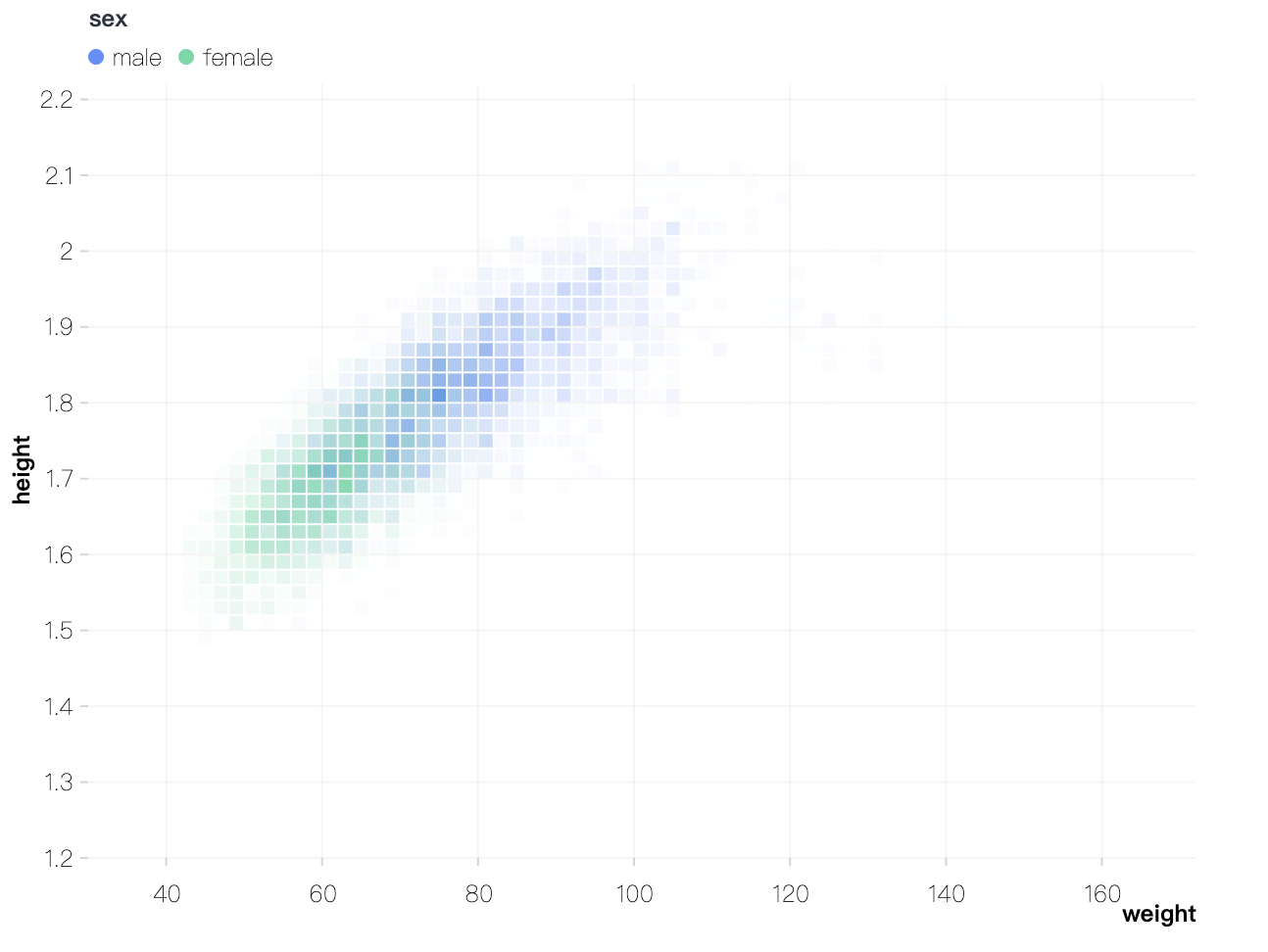 ```ts
import { Chart } from '@antv/g2';
const chart = new Chart({
container: 'container',
});
chart
.rect()
.data({
type: 'fetch',
value: 'data/athletes.csv',
})
.encode('x', 'weight')
.encode('y', 'height')
.encode('color', 'sex')
.transform([{ type: 'bin', opacity: 'count' }])
.style('inset', 0.5);
chart.render();
```
---
### view.point()
Adds a [point](/en/manual/core/mark/point/) mark. The `point` mark is primarily used for scatter plots, also known as dot plots or scatter diagrams. Scatter plots display data points on a Cartesian coordinate system, representing their values through position.
```ts
import { Chart } from '@antv/g2';
const chart = new Chart({
container: 'container',
});
chart
.rect()
.data({
type: 'fetch',
value: 'data/athletes.csv',
})
.encode('x', 'weight')
.encode('y', 'height')
.encode('color', 'sex')
.transform([{ type: 'bin', opacity: 'count' }])
.style('inset', 0.5);
chart.render();
```
---
### view.point()
Adds a [point](/en/manual/core/mark/point/) mark. The `point` mark is primarily used for scatter plots, also known as dot plots or scatter diagrams. Scatter plots display data points on a Cartesian coordinate system, representing their values through position.
 ```ts
import { Chart } from '@antv/g2';
const chart = new Chart({
container: 'container',
});
chart
.point()
.data({
type: 'fetch',
value: 'https://gw.alipayobjects.com/os/antvdemo/assets/data/bubble.json',
})
.encode('x', 'GDP')
.encode('y', 'LifeExpectancy')
.encode('size', 'Population')
.encode('color', 'continent')
.encode('shape', 'point')
.scale('size', { type: 'log', range: [4, 20] })
.style('fillOpacity', 0.3)
.style('lineWidth', 1);
chart.render();
```
---
### view.area()
Adds an [area](/en/manual/core/mark/area/) mark. The `area` mark is commonly used to create area charts. These charts illustrate changes in data values over ordered variables, often displaying trends or patterns in the data.
```ts
import { Chart } from '@antv/g2';
const chart = new Chart({
container: 'container',
});
chart
.point()
.data({
type: 'fetch',
value: 'https://gw.alipayobjects.com/os/antvdemo/assets/data/bubble.json',
})
.encode('x', 'GDP')
.encode('y', 'LifeExpectancy')
.encode('size', 'Population')
.encode('color', 'continent')
.encode('shape', 'point')
.scale('size', { type: 'log', range: [4, 20] })
.style('fillOpacity', 0.3)
.style('lineWidth', 1);
chart.render();
```
---
### view.area()
Adds an [area](/en/manual/core/mark/area/) mark. The `area` mark is commonly used to create area charts. These charts illustrate changes in data values over ordered variables, often displaying trends or patterns in the data.
 ```ts
import { Chart } from '@antv/g2';
const chart = new Chart({
container: 'container',
});
chart.options({
type: 'area',
data: {
type: 'fetch',
value: 'https://assets.antv.antgroup.com/g2/aapl.json',
transform: [
{
type: 'map',
callback: (d) => ({
...d,
date: new Date(d.date),
}),
},
],
},
encode: { x: 'date', y: 'close' },
});
chart.render();
```
---
### view.line()
Adds a [line](/en/manual/core/mark/line/) mark. The `line` mark uses a series of points to draw a line that represents changes in data across an ordered dimension. It is commonly used in line charts and is one of the most widely used marks.
```ts
import { Chart } from '@antv/g2';
const chart = new Chart({
container: 'container',
});
chart.options({
type: 'area',
data: {
type: 'fetch',
value: 'https://assets.antv.antgroup.com/g2/aapl.json',
transform: [
{
type: 'map',
callback: (d) => ({
...d,
date: new Date(d.date),
}),
},
],
},
encode: { x: 'date', y: 'close' },
});
chart.render();
```
---
### view.line()
Adds a [line](/en/manual/core/mark/line/) mark. The `line` mark uses a series of points to draw a line that represents changes in data across an ordered dimension. It is commonly used in line charts and is one of the most widely used marks.
 ```ts
import { Chart } from '@antv/g2';
const chart = new Chart({
container: 'container',
});
chart
.line()
.data({
type: 'fetch',
value:
'https://gw.alipayobjects.com/os/bmw-prod/551d80c6-a6be-4f3c-a82a-abd739e12977.csv',
})
.encode('x', 'date')
.encode('y', 'close');
chart.render();
```
---
### view.vector()
Adds a [vector](/en/manual/core/mark/vector/) mark. The `vector` mark visualizes data as arrows, representing vector fields such as wind or flow patterns. The arrow's position, size, color, and angle can be customized to convey various information.
```ts
import { Chart } from '@antv/g2';
const chart = new Chart({
container: 'container',
});
chart
.line()
.data({
type: 'fetch',
value:
'https://gw.alipayobjects.com/os/bmw-prod/551d80c6-a6be-4f3c-a82a-abd739e12977.csv',
})
.encode('x', 'date')
.encode('y', 'close');
chart.render();
```
---
### view.vector()
Adds a [vector](/en/manual/core/mark/vector/) mark. The `vector` mark visualizes data as arrows, representing vector fields such as wind or flow patterns. The arrow's position, size, color, and angle can be customized to convey various information.
 ```ts
import { Chart } from '@antv/g2';
const chart = new Chart({
container: 'container',
});
chart
.vector()
.data({
type: 'fetch',
value: 'https://gw.alipayobjects.com/os/antfincdn/F5VcgnqRku/wind.json',
})
.encode('x', 'longitude')
.encode('y', 'latitude')
.encode('rotate', ({ u, v }) => (Math.atan2(v, u) * 180) / Math.PI)
.encode('size', ({ u, v }) => Math.hypot(v, u))
.encode('color', ({ u, v }) => Math.hypot(v, u))
.scale('size', { range: [6, 20] })
.scale('color', { type: 'sequential', palette: 'viridis' })
.axis('x', { grid: false })
.axis('y', { grid: false })
.legend(false);
chart.render();
```
### view.link()
Adds a [link](/en/manual/core/mark/link/) mark. The `link` mark is similar to a line chart, but it connects pairs of points specified by arrays of two values in the `x` and `y` channels. It retrieves corresponding `(x, y)` pairs and connects them with directed line segments, optionally adding arrows.
```ts
import { Chart } from '@antv/g2';
const chart = new Chart({
container: 'container',
});
chart
.vector()
.data({
type: 'fetch',
value: 'https://gw.alipayobjects.com/os/antfincdn/F5VcgnqRku/wind.json',
})
.encode('x', 'longitude')
.encode('y', 'latitude')
.encode('rotate', ({ u, v }) => (Math.atan2(v, u) * 180) / Math.PI)
.encode('size', ({ u, v }) => Math.hypot(v, u))
.encode('color', ({ u, v }) => Math.hypot(v, u))
.scale('size', { range: [6, 20] })
.scale('color', { type: 'sequential', palette: 'viridis' })
.axis('x', { grid: false })
.axis('y', { grid: false })
.legend(false);
chart.render();
```
### view.link()
Adds a [link](/en/manual/core/mark/link/) mark. The `link` mark is similar to a line chart, but it connects pairs of points specified by arrays of two values in the `x` and `y` channels. It retrieves corresponding `(x, y)` pairs and connects them with directed line segments, optionally adding arrows.
 ```ts
import { Chart } from '@antv/g2';
const chart = new Chart({
container: 'container',
});
chart
.link()
.data({
type: 'fetch',
value: 'https://gw.alipayobjects.com/os/antfincdn/SM13%24lHuYH/metros.json',
})
.encode('x', ['POP_1980', 'POP_2015'])
.encode('y', ['R90_10_1980', 'R90_10_2015'])
.encode('color', (d) => d.R90_10_2015 - d.R90_10_1980)
.scale('x', { type: 'log' })
.style('arrowSize', 6)
.axis('x', { labelFormatter: '~s', label: { autoHide: true } })
.legend(false);
chart.render();
```
---
### view.polygon()
Adds a [polygon](/en/manual/core/mark/polygon/) mark. The `polygon` mark uses a set of `(x, y)` data points to form a closed shape. It is often combined with community visualization layout algorithms to process and display data.
```ts
import { Chart } from '@antv/g2';
const chart = new Chart({
container: 'container',
});
chart
.link()
.data({
type: 'fetch',
value: 'https://gw.alipayobjects.com/os/antfincdn/SM13%24lHuYH/metros.json',
})
.encode('x', ['POP_1980', 'POP_2015'])
.encode('y', ['R90_10_1980', 'R90_10_2015'])
.encode('color', (d) => d.R90_10_2015 - d.R90_10_1980)
.scale('x', { type: 'log' })
.style('arrowSize', 6)
.axis('x', { labelFormatter: '~s', label: { autoHide: true } })
.legend(false);
chart.render();
```
---
### view.polygon()
Adds a [polygon](/en/manual/core/mark/polygon/) mark. The `polygon` mark uses a set of `(x, y)` data points to form a closed shape. It is often combined with community visualization layout algorithms to process and display data.
 ```ts
import { Chart } from '@antv/g2';
import * as d3 from 'd3-voronoi';
const layout = (data) => {
return d3
.voronoi()
.x((d) => d.x)
.y((d) => d.y)
.extent([
[0, 0],
[800, 600],
])
.polygons(data)
.map((p) =>
Object.assign({}, p, {
x: p.map((pi) => pi[0]),
y: p.map((pi) => pi[1]),
}),
);
};
const chart = new Chart({
container: 'container',
paddingLeft: 0,
paddingRight: 0,
paddingTop: 0,
paddingBottom: 0,
});
chart
.polygon()
.data({
type: 'fetch',
value: 'https://gw.alipayobjects.com/os/antvdemo/assets/data/voronoi.json',
transform: [
{
type: 'custom',
callback: layout,
},
],
})
.encode('x', 'x')
.encode('y', 'y')
.encode('color', (d) => d.data.value)
.scale('x', { domain: [0, 800] })
.scale('y', { domain: [0, 600] })
.axis(false)
.style('stroke', '#fff')
.style('fillOpacity', 0.65);
chart.render();
```
---
### view.image()
Adds an [image](/en/manual/core/mark/image/) mark. The `image` mark is typically not used alone but enhances other marks by adding visual elements like icons or logos. This helps convey information more intuitively and improves the overall visualization.
```ts
import { Chart } from '@antv/g2';
import * as d3 from 'd3-voronoi';
const layout = (data) => {
return d3
.voronoi()
.x((d) => d.x)
.y((d) => d.y)
.extent([
[0, 0],
[800, 600],
])
.polygons(data)
.map((p) =>
Object.assign({}, p, {
x: p.map((pi) => pi[0]),
y: p.map((pi) => pi[1]),
}),
);
};
const chart = new Chart({
container: 'container',
paddingLeft: 0,
paddingRight: 0,
paddingTop: 0,
paddingBottom: 0,
});
chart
.polygon()
.data({
type: 'fetch',
value: 'https://gw.alipayobjects.com/os/antvdemo/assets/data/voronoi.json',
transform: [
{
type: 'custom',
callback: layout,
},
],
})
.encode('x', 'x')
.encode('y', 'y')
.encode('color', (d) => d.data.value)
.scale('x', { domain: [0, 800] })
.scale('y', { domain: [0, 600] })
.axis(false)
.style('stroke', '#fff')
.style('fillOpacity', 0.65);
chart.render();
```
---
### view.image()
Adds an [image](/en/manual/core/mark/image/) mark. The `image` mark is typically not used alone but enhances other marks by adding visual elements like icons or logos. This helps convey information more intuitively and improves the overall visualization.
 ```ts
import { Chart } from '@antv/g2';
const data = [
{
name: 'Internet Explorer',
value: 26,
url: 'https://gw.alipayobjects.com/zos/rmsportal/eOYRaLPOmkieVvjyjTzM.png',
},
{
name: 'Chrome',
value: 40,
url: 'https://gw.alipayobjects.com/zos/rmsportal/dWJWRLWfpOEbwCyxmZwu.png',
},
{
name: 'Firefox',
value: 30,
url: 'https://gw.alipayobjects.com/zos/rmsportal/ZEPeDluKmAoTioCABBTc.png',
},
{
name: 'Safari',
value: 24,
url: 'https://gw.alipayobjects.com/zos/rmsportal/eZYhlLzqWLAYwOHQAXmc.png',
},
{
name: 'Opera',
value: 15,
url: 'https://gw.alipayobjects.com/zos/rmsportal/vXiGOWCGZNKuVVpVYQAw.png',
},
{
name: 'Undetectable',
value: 8,
url: 'https://gw.alipayobjects.com/zos/rmsportal/NjApYXminrnhBgOXyuaK.png',
},
];
const chart = new Chart({
container: 'container',
});
chart.data(data);
chart
.link()
.encode('x', ['name', 'name'])
.encode('y', (d) => [0, d.value])
.style('stroke', '#dfdfdf')
.style('lineDash', [2, 2]);
chart
.line()
.encode('x', 'name')
.encode('y', 'value')
.encode('shape', 'smooth')
.scale('x', { type: 'band' })
.scale('y', { domain: [0, 50] })
.style('opacity', 0.5);
chart
.image()
.encode('x', 'name')
.encode('y', 'value')
.encode('src', 'url')
.scale('x', { type: 'band' })
.scale('y', { domain: [0, 50] });
chart.render();
```
---
### view.text()
Adds a [text](/en/manual/core/mark/text/) mark. The `text` mark is a graphical element used to add textual annotations, labels, or explanatory content directly onto a chart. This enhances the readability and effectiveness of data visualizations.
```ts
import { Chart } from '@antv/g2';
const data = [
{
name: 'Internet Explorer',
value: 26,
url: 'https://gw.alipayobjects.com/zos/rmsportal/eOYRaLPOmkieVvjyjTzM.png',
},
{
name: 'Chrome',
value: 40,
url: 'https://gw.alipayobjects.com/zos/rmsportal/dWJWRLWfpOEbwCyxmZwu.png',
},
{
name: 'Firefox',
value: 30,
url: 'https://gw.alipayobjects.com/zos/rmsportal/ZEPeDluKmAoTioCABBTc.png',
},
{
name: 'Safari',
value: 24,
url: 'https://gw.alipayobjects.com/zos/rmsportal/eZYhlLzqWLAYwOHQAXmc.png',
},
{
name: 'Opera',
value: 15,
url: 'https://gw.alipayobjects.com/zos/rmsportal/vXiGOWCGZNKuVVpVYQAw.png',
},
{
name: 'Undetectable',
value: 8,
url: 'https://gw.alipayobjects.com/zos/rmsportal/NjApYXminrnhBgOXyuaK.png',
},
];
const chart = new Chart({
container: 'container',
});
chart.data(data);
chart
.link()
.encode('x', ['name', 'name'])
.encode('y', (d) => [0, d.value])
.style('stroke', '#dfdfdf')
.style('lineDash', [2, 2]);
chart
.line()
.encode('x', 'name')
.encode('y', 'value')
.encode('shape', 'smooth')
.scale('x', { type: 'band' })
.scale('y', { domain: [0, 50] })
.style('opacity', 0.5);
chart
.image()
.encode('x', 'name')
.encode('y', 'value')
.encode('src', 'url')
.scale('x', { type: 'band' })
.scale('y', { domain: [0, 50] });
chart.render();
```
---
### view.text()
Adds a [text](/en/manual/core/mark/text/) mark. The `text` mark is a graphical element used to add textual annotations, labels, or explanatory content directly onto a chart. This enhances the readability and effectiveness of data visualizations.
 ```ts
import { Chart } from '@antv/g2';
const chart = new Chart({
container: 'container',
});
chart.data({
type: 'fetch',
value:
'https://gw.alipayobjects.com/os/bmw-prod/fb9db6b7-23a5-4c23-bbef-c54a55fee580.csv',
});
chart
.interval()
.encode('x', 'letter')
.encode('y', 'frequency')
.axis('y', { labelFormatter: '.0%' });
chart
.text()
.encode('x', 'letter')
.encode('y', 'frequency')
.encode('text', 'frequency')
.style('fill', 'black')
.style('textAlign', 'center')
.style('dy', -5);
chart.render();
```
---
### view.lineX()
Adds a [lineX](/en/manual/core/mark/line-x/) mark. The `lineX` mark draws a vertical auxiliary line perpendicular to the x-axis. It is commonly used to highlight averages or other aggregated data points.
```ts
import { Chart } from '@antv/g2';
const chart = new Chart({
container: 'container',
});
chart.data({
type: 'fetch',
value:
'https://gw.alipayobjects.com/os/bmw-prod/fb9db6b7-23a5-4c23-bbef-c54a55fee580.csv',
});
chart
.interval()
.encode('x', 'letter')
.encode('y', 'frequency')
.axis('y', { labelFormatter: '.0%' });
chart
.text()
.encode('x', 'letter')
.encode('y', 'frequency')
.encode('text', 'frequency')
.style('fill', 'black')
.style('textAlign', 'center')
.style('dy', -5);
chart.render();
```
---
### view.lineX()
Adds a [lineX](/en/manual/core/mark/line-x/) mark. The `lineX` mark draws a vertical auxiliary line perpendicular to the x-axis. It is commonly used to highlight averages or other aggregated data points.
 ```ts
import { Chart } from '@antv/g2';
const chart = new Chart({
container: 'container',
paddingLeft: 50,
});
chart.data({
type: 'fetch',
value: 'https://assets.antv.antgroup.com/g2/movies.json',
transform: [
{
type: 'filter',
callback: (d) => d['IMDB Rating'] > 0,
},
],
});
chart
.rect()
.transform({ type: 'binX', y: 'count', thresholds: 9 })
.encode('x', 'IMDB Rating')
.scale('y', { domainMax: 1000 })
.style('inset', 1);
chart
.lineX()
.transform({ type: 'groupColor', y: 'mean' })
.encode('x', 'IMDB Rating')
.style('stroke', '#F4664A')
.style('strokeOpacity', 1)
.style('lineWidth', 5);
chart.render();
```
---
### view.lineY()
Adds a [lineY](/en/manual/core/mark/line-y/) mark. The `lineY` mark draws a horizontal auxiliary line perpendicular to the y-axis. It is often used to highlight averages or other aggregated data points.
```ts
import { Chart } from '@antv/g2';
const chart = new Chart({
container: 'container',
paddingLeft: 50,
});
chart.data({
type: 'fetch',
value: 'https://assets.antv.antgroup.com/g2/movies.json',
transform: [
{
type: 'filter',
callback: (d) => d['IMDB Rating'] > 0,
},
],
});
chart
.rect()
.transform({ type: 'binX', y: 'count', thresholds: 9 })
.encode('x', 'IMDB Rating')
.scale('y', { domainMax: 1000 })
.style('inset', 1);
chart
.lineX()
.transform({ type: 'groupColor', y: 'mean' })
.encode('x', 'IMDB Rating')
.style('stroke', '#F4664A')
.style('strokeOpacity', 1)
.style('lineWidth', 5);
chart.render();
```
---
### view.lineY()
Adds a [lineY](/en/manual/core/mark/line-y/) mark. The `lineY` mark draws a horizontal auxiliary line perpendicular to the y-axis. It is often used to highlight averages or other aggregated data points.
 ```ts
import { Chart } from '@antv/g2';
const chart = new Chart({
container: 'container',
});
chart.data({
type: 'fetch',
value: 'https://assets.antv.antgroup.com/g2/seattle-weather.json',
});
chart
.interval()
.transform({ type: 'groupX', y: 'mean' })
.encode('x', (d) => new Date(d.date).getUTCMonth())
.encode('y', 'precipitation')
.scale('y', { tickCount: 5, domainMax: 6 });
chart
.lineY()
.transform({ type: 'groupX', y: 'mean' })
.encode('y', 'precipitation')
.style('stroke', '#F4664A')
.style('strokeOpacity', 1)
.style('lineWidth', 2);
chart.render();
```
---
### view.range()
Adds a [range](/en/manual/core/mark/range/) mark. The `range` mark defines a rectangular area using two sets of coordinates: one for the horizontal direction `(x1, x2)` and another for the vertical direction `(y1, y2)`. It is commonly used to highlight background regions or mark specific areas.
```ts
import { Chart } from '@antv/g2';
const chart = new Chart({
container: 'container',
});
chart.data({
type: 'fetch',
value: 'https://assets.antv.antgroup.com/g2/seattle-weather.json',
});
chart
.interval()
.transform({ type: 'groupX', y: 'mean' })
.encode('x', (d) => new Date(d.date).getUTCMonth())
.encode('y', 'precipitation')
.scale('y', { tickCount: 5, domainMax: 6 });
chart
.lineY()
.transform({ type: 'groupX', y: 'mean' })
.encode('y', 'precipitation')
.style('stroke', '#F4664A')
.style('strokeOpacity', 1)
.style('lineWidth', 2);
chart.render();
```
---
### view.range()
Adds a [range](/en/manual/core/mark/range/) mark. The `range` mark defines a rectangular area using two sets of coordinates: one for the horizontal direction `(x1, x2)` and another for the vertical direction `(y1, y2)`. It is commonly used to highlight background regions or mark specific areas.
 ```ts
import { Chart } from '@antv/g2';
const chart = new Chart({ container: 'container' });
chart.data({
type: 'fetch',
value:
'https://gw.alipayobjects.com/os/bmw-prod/0b37279d-1674-42b4-b285-29683747ad9a.json',
});
chart.options({
type: 'view',
children: [
{ type: 'lineX', data: [0] },
{ type: 'lineY', data: [0] },
{
type: 'range',
data: [
{ x: [-25, 0], y: [-30, 0], region: '1' },
{ x: [-25, 0], y: [0, 20], region: '2' },
{ x: [0, 5], y: [-30, 0], region: '2' },
{ x: [0, 5], y: [0, 20], region: '1' },
],
encode: { x: 'x', y: 'y', color: 'region' },
scale: {
color: { range: ['#d8d0c0', '#a3dda1'], independent: true, guide: null },
},
style: { fillOpacity: 0.2 },
},
{
type: 'point',
encode: {
x: 'change in female rate',
y: 'change in male rate',
size: 'pop',
color: 'continent',
shape: 'point',
},
scale: {
color: { range: ['#ffd500', '#82cab2', '#193442', '#d18768', '#7e827a'] },
x: { domain: [-25, 5] },
y: { domain: [-30, 20] },
size: { range: [4, 30] },
},
axis: { x: { title: false }, y: { title: false } },
style: { stroke: '#bbb', fillOpacity: 0.8 },
},
],
});
chart.render();
```
---
### view.rangeX()
Adds a [rangeX](/en/manual/core/mark/range-x/) mark. The `rangeX` mark uses a pair of `x` values `(x1, x2)` to define a rectangular area along the x-axis. It is often used to highlight specific regions.
```ts
import { Chart } from '@antv/g2';
const chart = new Chart({ container: 'container' });
chart.data({
type: 'fetch',
value:
'https://gw.alipayobjects.com/os/bmw-prod/0b37279d-1674-42b4-b285-29683747ad9a.json',
});
chart.options({
type: 'view',
children: [
{ type: 'lineX', data: [0] },
{ type: 'lineY', data: [0] },
{
type: 'range',
data: [
{ x: [-25, 0], y: [-30, 0], region: '1' },
{ x: [-25, 0], y: [0, 20], region: '2' },
{ x: [0, 5], y: [-30, 0], region: '2' },
{ x: [0, 5], y: [0, 20], region: '1' },
],
encode: { x: 'x', y: 'y', color: 'region' },
scale: {
color: { range: ['#d8d0c0', '#a3dda1'], independent: true, guide: null },
},
style: { fillOpacity: 0.2 },
},
{
type: 'point',
encode: {
x: 'change in female rate',
y: 'change in male rate',
size: 'pop',
color: 'continent',
shape: 'point',
},
scale: {
color: { range: ['#ffd500', '#82cab2', '#193442', '#d18768', '#7e827a'] },
x: { domain: [-25, 5] },
y: { domain: [-30, 20] },
size: { range: [4, 30] },
},
axis: { x: { title: false }, y: { title: false } },
style: { stroke: '#bbb', fillOpacity: 0.8 },
},
],
});
chart.render();
```
---
### view.rangeX()
Adds a [rangeX](/en/manual/core/mark/range-x/) mark. The `rangeX` mark uses a pair of `x` values `(x1, x2)` to define a rectangular area along the x-axis. It is often used to highlight specific regions.
 ```ts
import { Chart } from '@antv/g2';
const chart = new Chart({
container: 'container',
height: 360,
paddingLeft: 60,
});
chart.data({
type: 'fetch',
value: 'https://assets.antv.antgroup.com/g2/year-population.json',
});
chart.options({
type: 'view',
children: [
{
type: 'rangeX',
data: [
{ year: [new Date('1933'), new Date('1945')], event: 'Nazi Rule' },
{ year: [new Date('1948'), new Date('1989')], event: 'GDR (East Germany)' },
],
encode: { x: 'year', color: 'event' },
scale: { color: { independent: true, range: ['#FAAD14', '#30BF78'] } },
style: { fillOpacity: 0.75 },
},
{
type: 'line',
encode: { x: (d) => new Date(d.year), y: 'population', color: '#333' },
},
{
type: 'point',
encode: { x: (d) => new Date(d.year), y: 'population', color: '#333' },
style: { lineWidth: 1.5 },
},
],
});
chart.render();
```
Additionally, `rangeX` supports a shorthand syntax:
```ts
chart
.rangeX()
.data([[new Date('2010'), new Date('2011')]])
.encode('x', (d) => d);
// Simplified version:
chart.rangeX().data([new Date('2010'), new Date('2011')]);
```
---
### view.rangeY()
Adds a [rangeY](/en/manual/core/mark/range-y/) mark. The `rangeY` mark uses a pair of `y` values `(y1, y2)` to define a rectangular area along the y-axis. It is often used to highlight specific regions.
```ts
import { Chart } from '@antv/g2';
const chart = new Chart({
container: 'container',
height: 360,
paddingLeft: 60,
});
chart.data({
type: 'fetch',
value: 'https://assets.antv.antgroup.com/g2/year-population.json',
});
chart.options({
type: 'view',
children: [
{
type: 'rangeX',
data: [
{ year: [new Date('1933'), new Date('1945')], event: 'Nazi Rule' },
{ year: [new Date('1948'), new Date('1989')], event: 'GDR (East Germany)' },
],
encode: { x: 'year', color: 'event' },
scale: { color: { independent: true, range: ['#FAAD14', '#30BF78'] } },
style: { fillOpacity: 0.75 },
},
{
type: 'line',
encode: { x: (d) => new Date(d.year), y: 'population', color: '#333' },
},
{
type: 'point',
encode: { x: (d) => new Date(d.year), y: 'population', color: '#333' },
style: { lineWidth: 1.5 },
},
],
});
chart.render();
```
Additionally, `rangeX` supports a shorthand syntax:
```ts
chart
.rangeX()
.data([[new Date('2010'), new Date('2011')]])
.encode('x', (d) => d);
// Simplified version:
chart.rangeX().data([new Date('2010'), new Date('2011')]);
```
---
### view.rangeY()
Adds a [rangeY](/en/manual/core/mark/range-y/) mark. The `rangeY` mark uses a pair of `y` values `(y1, y2)` to define a rectangular area along the y-axis. It is often used to highlight specific regions.
 ```ts
import { Chart } from '@antv/g2';
const chart = new Chart({
container: 'container',
});
chart.options({
type: 'view',
children: [
{
type: 'point',
data: {
type: 'fetch',
value:
'https://gw.alipayobjects.com/os/basement_prod/6b4aa721-b039-49b9-99d8-540b3f87d339.json',
},
encode: { x: 'height', y: 'weight', color: 'gender' },
},
{
type: 'rangeY',
data: [{ y: [54, 72] }],
encode: { y: 'y' },
},
],
});
chart.render();
```
Additionally, `rangeY` supports a shorthand syntax:
```ts
chart
.rangeY()
.data([
[54, 60],
[65, 72],
])
.encode('y', (d) => d);
// Simplified version:
chart.rangeY().data([
[54, 60],
[65, 72],
]);
```
### view.connector()
Adds a **connector** mark. The `connector` is used to draw auxiliary lines that connect two elements, often highlighting relationships or transitions between data points.
```ts
import { Chart } from '@antv/g2';
const chart = new Chart({
container: 'container',
});
chart.options({
type: 'view',
children: [
{
type: 'point',
data: {
type: 'fetch',
value:
'https://gw.alipayobjects.com/os/basement_prod/6b4aa721-b039-49b9-99d8-540b3f87d339.json',
},
encode: { x: 'height', y: 'weight', color: 'gender' },
},
{
type: 'rangeY',
data: [{ y: [54, 72] }],
encode: { y: 'y' },
},
],
});
chart.render();
```
Additionally, `rangeY` supports a shorthand syntax:
```ts
chart
.rangeY()
.data([
[54, 60],
[65, 72],
])
.encode('y', (d) => d);
// Simplified version:
chart.rangeY().data([
[54, 60],
[65, 72],
]);
```
### view.connector()
Adds a **connector** mark. The `connector` is used to draw auxiliary lines that connect two elements, often highlighting relationships or transitions between data points.
 ```ts
import { Chart } from '@antv/g2';
const chart = new Chart({
container: 'container',
autoFit: true,
insetTop: 30,
});
chart
.data([
{ x: 'Net Sales', value: 5085000, start: 0, end: 5085000 },
{ x: 'Cost of Sales', value: -1250450, start: 5085000, end: 3834550 },
{ x: 'Operating Expenses', value: -2350050, start: 3834550, end: 1484500 },
{ x: 'Other Income', value: 750000, start: 1484500, end: 2234500 },
{ x: 'Extraordinary Gain', value: -230050, start: 2234500, end: 2004450 },
{ x: 'Interest Expense', value: -500000, start: 2004450, end: 1504450 },
{ x: 'Taxis', value: 490000, start: 1504450, end: 1994450 },
{ x: 'Net Income', isTotal: true, value: 1994450, start: 0, end: 1994450 },
])
.axis('x', { title: false, labelTransform: 'rotate(-90)' })
.axis('y', { labelFormatter: '~s' })
.legend(null);
chart
.link()
.data({ transform: [{ type: 'custom', callback: linkData }] })
.encode('x', ['x1', 'x2'])
.encode('y', 'value')
.style('stroke', '#697474')
.style('lineDash', [4, 2])
.tooltip(false);
chart
.connector()
.data({ transform: [{ type: 'custom', callback: connectorData }] })
.encode('x', ['x1', 'x2'])
.encode('y', ['y1', 'y2'])
.label({
text: (d) => `${d.y2 - d.y1}`,
formatter: '~s',
fontSize: 10,
dy: 2,
})
.style({ stroke: '#697474', offset: 16 })
.tooltip(false);
chart
.interval()
.encode('x', 'x')
.encode('y', ['start', 'end'])
.encode('color', (d, idx) =>
idx === 0 || d.isTotal ? 'D' : d.value > 0 ? 'P' : 'N',
)
.scale('color', {
domain: ['P', 'N', 'D'],
range: ['#64b5f6', '#ef6c00', '#96a6a6'],
})
.encode('size', 24)
.style('stroke', '#697474')
.label({
text: 'value',
formatter: '~s',
position: (d) => (d.value > 0 ? 'top' : 'bottom'),
textBaseline: (d) => (d.value > 0 ? 'bottom' : 'top'),
fontSize: 10,
dy: (d) => (d.value > 0 ? -4 : 4),
})
.tooltip({ channel: 'y', valueFormatter: '~s' })
.tooltip({ channel: 'y1', valueFormatter: '~s' });
chart.render();
// Process data.
function linkData(data) {
return data.reduce((r, d, idx) => {
if (idx > 0) {
return r.concat({
x1: data[idx - 1].x,
x2: d.x,
value: d.isTotal ? d.end : d.start,
});
}
return r;
}, []);
}
function connectorData(data) {
return [
{
x1: data[0].x,
y1: data[0].end,
x2: data[data.length - 1].x,
y2: data[data.length - 1].end,
},
];
}
```
---
### view.sankey()
Adds a **sankey** mark. A Sankey diagram is a specialized flow diagram used to depict the flow of values from one set of nodes to another. It’s particularly effective for visualizing resource distribution, energy flows, or hierarchical data.
```ts
import { Chart } from '@antv/g2';
const chart = new Chart({
container: 'container',
autoFit: true,
insetTop: 30,
});
chart
.data([
{ x: 'Net Sales', value: 5085000, start: 0, end: 5085000 },
{ x: 'Cost of Sales', value: -1250450, start: 5085000, end: 3834550 },
{ x: 'Operating Expenses', value: -2350050, start: 3834550, end: 1484500 },
{ x: 'Other Income', value: 750000, start: 1484500, end: 2234500 },
{ x: 'Extraordinary Gain', value: -230050, start: 2234500, end: 2004450 },
{ x: 'Interest Expense', value: -500000, start: 2004450, end: 1504450 },
{ x: 'Taxis', value: 490000, start: 1504450, end: 1994450 },
{ x: 'Net Income', isTotal: true, value: 1994450, start: 0, end: 1994450 },
])
.axis('x', { title: false, labelTransform: 'rotate(-90)' })
.axis('y', { labelFormatter: '~s' })
.legend(null);
chart
.link()
.data({ transform: [{ type: 'custom', callback: linkData }] })
.encode('x', ['x1', 'x2'])
.encode('y', 'value')
.style('stroke', '#697474')
.style('lineDash', [4, 2])
.tooltip(false);
chart
.connector()
.data({ transform: [{ type: 'custom', callback: connectorData }] })
.encode('x', ['x1', 'x2'])
.encode('y', ['y1', 'y2'])
.label({
text: (d) => `${d.y2 - d.y1}`,
formatter: '~s',
fontSize: 10,
dy: 2,
})
.style({ stroke: '#697474', offset: 16 })
.tooltip(false);
chart
.interval()
.encode('x', 'x')
.encode('y', ['start', 'end'])
.encode('color', (d, idx) =>
idx === 0 || d.isTotal ? 'D' : d.value > 0 ? 'P' : 'N',
)
.scale('color', {
domain: ['P', 'N', 'D'],
range: ['#64b5f6', '#ef6c00', '#96a6a6'],
})
.encode('size', 24)
.style('stroke', '#697474')
.label({
text: 'value',
formatter: '~s',
position: (d) => (d.value > 0 ? 'top' : 'bottom'),
textBaseline: (d) => (d.value > 0 ? 'bottom' : 'top'),
fontSize: 10,
dy: (d) => (d.value > 0 ? -4 : 4),
})
.tooltip({ channel: 'y', valueFormatter: '~s' })
.tooltip({ channel: 'y1', valueFormatter: '~s' });
chart.render();
// Process data.
function linkData(data) {
return data.reduce((r, d, idx) => {
if (idx > 0) {
return r.concat({
x1: data[idx - 1].x,
x2: d.x,
value: d.isTotal ? d.end : d.start,
});
}
return r;
}, []);
}
function connectorData(data) {
return [
{
x1: data[0].x,
y1: data[0].end,
x2: data[data.length - 1].x,
y2: data[data.length - 1].end,
},
];
}
```
---
### view.sankey()
Adds a **sankey** mark. A Sankey diagram is a specialized flow diagram used to depict the flow of values from one set of nodes to another. It’s particularly effective for visualizing resource distribution, energy flows, or hierarchical data.
 ```js
import { Chart } from '@antv/g2';
const chart = new Chart({
container: 'container',
padding: 10,
});
chart
.sankey()
.data({
type: 'fetch',
value: 'https://assets.antv.antgroup.com/g2/energy.json',
transform: [
{
type: 'custom',
callback: (data) => ({ links: data }),
},
],
})
.layout({
nodeAlign: 'center',
nodePadding: 0.03,
})
.scale('color', { range: schemeTableau10 })
.style('labelSpacing', 3)
.style('labelFontWeight', 'bold')
.style('nodeStrokeWidth', 1.2)
.style('linkFillOpacity', 0.4);
chart.render();
```
---
### view.treemap()
Adds a **treemap** mark. A treemap recursively divides space into rectangles based on the associated values of each node, making it ideal for visualizing weighted, hierarchical data. It provides a clear and intuitive way to compare data at the same level.
```js
import { Chart } from '@antv/g2';
const chart = new Chart({
container: 'container',
padding: 10,
});
chart
.sankey()
.data({
type: 'fetch',
value: 'https://assets.antv.antgroup.com/g2/energy.json',
transform: [
{
type: 'custom',
callback: (data) => ({ links: data }),
},
],
})
.layout({
nodeAlign: 'center',
nodePadding: 0.03,
})
.scale('color', { range: schemeTableau10 })
.style('labelSpacing', 3)
.style('labelFontWeight', 'bold')
.style('nodeStrokeWidth', 1.2)
.style('linkFillOpacity', 0.4);
chart.render();
```
---
### view.treemap()
Adds a **treemap** mark. A treemap recursively divides space into rectangles based on the associated values of each node, making it ideal for visualizing weighted, hierarchical data. It provides a clear and intuitive way to compare data at the same level.
 ```js
import { Chart } from '@antv/g2';
import { schemeTableau10 } from 'd3-scale-chromatic';
const chart = new Chart({
container: 'container',
});
chart
.treemap()
.data({
type: 'fetch',
value: 'https://assets.antv.antgroup.com/g2/flare-treemap.json',
})
.layout({
path: (d) => d.name.replace(/\./g, '/'),
tile: 'treemapBinary',
paddingInner: 1,
})
.encode('value', 'size')
.scale('color', { range: schemeTableau10 })
.style(
'labelText',
(d) =>
d.data.name
.split('.')
.pop()
.split(/(?=[A-Z][a-z])/g)[0],
)
.style('labelFill', '#000')
.style('labelPosition', 'top-left')
.style('fillOpacity', 0.5);
chart.render();
```
---
### view.box()
Adds a **box** mark. The `box` mark is used to create boxplots (also known as box-and-whisker plots), which are statistical charts that display the distribution of a dataset. Typically, they include the minimum, first quartile, median, third quartile, and maximum values. You can also combine it with point marks to highlight outliers.
```js
import { Chart } from '@antv/g2';
import { schemeTableau10 } from 'd3-scale-chromatic';
const chart = new Chart({
container: 'container',
});
chart
.treemap()
.data({
type: 'fetch',
value: 'https://assets.antv.antgroup.com/g2/flare-treemap.json',
})
.layout({
path: (d) => d.name.replace(/\./g, '/'),
tile: 'treemapBinary',
paddingInner: 1,
})
.encode('value', 'size')
.scale('color', { range: schemeTableau10 })
.style(
'labelText',
(d) =>
d.data.name
.split('.')
.pop()
.split(/(?=[A-Z][a-z])/g)[0],
)
.style('labelFill', '#000')
.style('labelPosition', 'top-left')
.style('fillOpacity', 0.5);
chart.render();
```
---
### view.box()
Adds a **box** mark. The `box` mark is used to create boxplots (also known as box-and-whisker plots), which are statistical charts that display the distribution of a dataset. Typically, they include the minimum, first quartile, median, third quartile, and maximum values. You can also combine it with point marks to highlight outliers.
 ```ts
import { Chart } from '@antv/g2';
const data = [
{ x: 'Oceania', y: [1, 9, 16, 22, 24] },
{ x: 'East Europe', y: [1, 5, 8, 12, 16] },
{ x: 'Australia', y: [1, 8, 12, 19, 26] },
{ x: 'South America', y: [2, 8, 12, 21, 28] },
{ x: 'North Africa', y: [1, 8, 14, 18, 24] },
{ x: 'North America', y: [3, 10, 17, 28, 30] },
{ x: 'West Europe', y: [1, 7, 10, 17, 22] },
{ x: 'West Africa', y: [1, 6, 8, 13, 16] },
];
const chart = new Chart({
container: 'container',
});
chart
.box()
.data(data)
.encode('x', 'x')
.encode('y', 'y')
.encode('color', 'x')
.scale('x', { paddingInner: 0.6, paddingOuter: 0.3 })
.scale('y', { zero: true })
.legend(false)
.style('stroke', 'black');
chart.render();
```
---
### view.boxplot()
Adds a **boxplot** mark. While similar to `box`, the `boxplot` is a higher-level mark that automatically performs data grouping and statistical aggregation. This makes it particularly useful for exploratory data analysis in the front end, whereas `box` is better suited for pre-aggregated data.
```ts
import { Chart } from '@antv/g2';
const data = [
{ x: 'Oceania', y: [1, 9, 16, 22, 24] },
{ x: 'East Europe', y: [1, 5, 8, 12, 16] },
{ x: 'Australia', y: [1, 8, 12, 19, 26] },
{ x: 'South America', y: [2, 8, 12, 21, 28] },
{ x: 'North Africa', y: [1, 8, 14, 18, 24] },
{ x: 'North America', y: [3, 10, 17, 28, 30] },
{ x: 'West Europe', y: [1, 7, 10, 17, 22] },
{ x: 'West Africa', y: [1, 6, 8, 13, 16] },
];
const chart = new Chart({
container: 'container',
});
chart
.box()
.data(data)
.encode('x', 'x')
.encode('y', 'y')
.encode('color', 'x')
.scale('x', { paddingInner: 0.6, paddingOuter: 0.3 })
.scale('y', { zero: true })
.legend(false)
.style('stroke', 'black');
chart.render();
```
---
### view.boxplot()
Adds a **boxplot** mark. While similar to `box`, the `boxplot` is a higher-level mark that automatically performs data grouping and statistical aggregation. This makes it particularly useful for exploratory data analysis in the front end, whereas `box` is better suited for pre-aggregated data.
 ```ts
import { Chart } from '@antv/g2';
const chart = new Chart({
container: 'container',
paddingLeft: 60,
inset: 6,
});
chart
.boxplot()
.data({
type: 'fetch',
value: 'https://assets.antv.antgroup.com/g2/morley.json',
})
.encode('x', 'Expt')
.encode('y', 'Speed');
chart.render();
```
---
### view.density()
Adds a **density** mark. A density plot visualizes the probability density of a continuous variable using Kernel Density Estimation (KDE). It smooths discrete data points into a continuous curve, offering insights into the data's central tendency, distribution shape, and potential outliers.
```ts
import { Chart } from '@antv/g2';
const chart = new Chart({
container: 'container',
paddingLeft: 60,
inset: 6,
});
chart
.boxplot()
.data({
type: 'fetch',
value: 'https://assets.antv.antgroup.com/g2/morley.json',
})
.encode('x', 'Expt')
.encode('y', 'Speed');
chart.render();
```
---
### view.density()
Adds a **density** mark. A density plot visualizes the probability density of a continuous variable using Kernel Density Estimation (KDE). It smooths discrete data points into a continuous curve, offering insights into the data's central tendency, distribution shape, and potential outliers.
 ```js
import { Chart } from '@antv/g2';
const chart = new Chart({
container: 'container',
autoFit: true,
});
chart.data({
type: 'fetch',
value: 'https://assets.antv.antgroup.com/g2/species.json',
transform: [
{
type: 'kde',
field: 'y',
groupBy: ['x'],
size: 20,
},
],
});
chart
.density()
.encode('x', 'x')
.encode('y', 'y')
.encode('color', 'x')
.encode('size', 'size')
.tooltip(false);
chart.render();
```
---
### view.heatmap()
Adds a **heatmap** mark. A heatmap uses color intensity to map the density or magnitude of two-dimensional data. It excels at revealing patterns, clusters, and anomalies within datasets.
```js
import { Chart } from '@antv/g2';
const chart = new Chart({
container: 'container',
autoFit: true,
});
chart.data({
type: 'fetch',
value: 'https://assets.antv.antgroup.com/g2/species.json',
transform: [
{
type: 'kde',
field: 'y',
groupBy: ['x'],
size: 20,
},
],
});
chart
.density()
.encode('x', 'x')
.encode('y', 'y')
.encode('color', 'x')
.encode('size', 'size')
.tooltip(false);
chart.render();
```
---
### view.heatmap()
Adds a **heatmap** mark. A heatmap uses color intensity to map the density or magnitude of two-dimensional data. It excels at revealing patterns, clusters, and anomalies within datasets.
 ```js
import { Chart } from '@antv/g2';
const chart = new Chart({
container: 'container',
autoFit: true,
padding: 0,
});
chart.axis(false);
chart
.image()
.style(
'src',
'https://gw.alipayobjects.com/zos/rmsportal/NeUTMwKtPcPxIFNTWZOZ.png',
)
.style('x', '50%')
.style('y', '50%')
.style('width', '100%')
.style('height', '100%')
.tooltip(false);
chart
.heatmap()
.data({
type: 'fetch',
value: 'https://assets.antv.antgroup.com/g2/heatmap.json',
})
.encode('x', 'g')
.encode('y', 'l')
.encode('color', 'tmp')
.style('opacity', 0)
.tooltip(false);
chart.render();
```
---
### view.shape()
Adds a **custom shape** mark. The `shape` mark in G2 is a flexible tool for drawing static, custom graphics on a chart. It’s commonly used for annotations, watermarks, badges, or other personalized elements.
```js
import { Chart } from '@antv/g2';
const chart = new Chart({
container: 'container',
autoFit: true,
padding: 0,
});
chart.axis(false);
chart
.image()
.style(
'src',
'https://gw.alipayobjects.com/zos/rmsportal/NeUTMwKtPcPxIFNTWZOZ.png',
)
.style('x', '50%')
.style('y', '50%')
.style('width', '100%')
.style('height', '100%')
.tooltip(false);
chart
.heatmap()
.data({
type: 'fetch',
value: 'https://assets.antv.antgroup.com/g2/heatmap.json',
})
.encode('x', 'g')
.encode('y', 'l')
.encode('color', 'tmp')
.style('opacity', 0)
.tooltip(false);
chart.render();
```
---
### view.shape()
Adds a **custom shape** mark. The `shape` mark in G2 is a flexible tool for drawing static, custom graphics on a chart. It’s commonly used for annotations, watermarks, badges, or other personalized elements.
 In the example below, the "Confidential Data" badge is drawn using the `shape` mark. To render custom shapes, you can retrieve the `document` object from the chart context and use `document.createElement` to create basic shapes like circles.
```ts
import { Chart } from '@antv/g2';
function point(style) {
const { x, y, fill } = style;
const {
canvas: { document },
} = chart.getContext();
return document.createElement('circle', {
style: {
cx: x,
cy: y,
fill,
},
});
}
chart.options({
type: 'shape',
style: {
x: '50%',
y: '50%',
fill: 'red',
render: point,
},
});
chart.render();
```
---
### view.pack()
Adds a **pack** mark. Circle packing is a variation of tree diagrams where hierarchical structures are represented using nested circles instead of rectangles. It’s particularly effective for illustrating containment relationships.
In the example below, the "Confidential Data" badge is drawn using the `shape` mark. To render custom shapes, you can retrieve the `document` object from the chart context and use `document.createElement` to create basic shapes like circles.
```ts
import { Chart } from '@antv/g2';
function point(style) {
const { x, y, fill } = style;
const {
canvas: { document },
} = chart.getContext();
return document.createElement('circle', {
style: {
cx: x,
cy: y,
fill,
},
});
}
chart.options({
type: 'shape',
style: {
x: '50%',
y: '50%',
fill: 'red',
render: point,
},
});
chart.render();
```
---
### view.pack()
Adds a **pack** mark. Circle packing is a variation of tree diagrams where hierarchical structures are represented using nested circles instead of rectangles. It’s particularly effective for illustrating containment relationships.
 ```js
import { Chart } from '@antv/g2';
import { interpolateHcl } from 'd3-interpolate';
const chart = new Chart({
container: 'container',
padding: 20,
});
chart
.pack()
.data({
type: 'fetch',
value: 'https://assets.antv.antgroup.com/g2/flare.json',
})
.layout({
padding: 5,
})
.encode('value', 'value')
.encode('color', 'depth')
.scale('color', {
domain: [0, 5],
range: ['hsl(152,80%,80%)', 'hsl(228,30%,40%)'],
interpolate: interpolateHcl,
})
.style('labelText', (d) =>
d.r >= 10 && d.height === 0 ? `${d.data.name}` : '',
)
.axis(false)
.legend(false);
chart.render();
```
---
### view.forceGraph()
Adds a **force-directed graph** mark. Force-directed graphs are used to visualize complex relational networks. In this layout, nodes act like charged particles that repel each other while edges act as springs, pulling connected nodes together.
```js
import { Chart } from '@antv/g2';
import { interpolateHcl } from 'd3-interpolate';
const chart = new Chart({
container: 'container',
padding: 20,
});
chart
.pack()
.data({
type: 'fetch',
value: 'https://assets.antv.antgroup.com/g2/flare.json',
})
.layout({
padding: 5,
})
.encode('value', 'value')
.encode('color', 'depth')
.scale('color', {
domain: [0, 5],
range: ['hsl(152,80%,80%)', 'hsl(228,30%,40%)'],
interpolate: interpolateHcl,
})
.style('labelText', (d) =>
d.r >= 10 && d.height === 0 ? `${d.data.name}` : '',
)
.axis(false)
.legend(false);
chart.render();
```
---
### view.forceGraph()
Adds a **force-directed graph** mark. Force-directed graphs are used to visualize complex relational networks. In this layout, nodes act like charged particles that repel each other while edges act as springs, pulling connected nodes together.
 ```js
import { Chart } from '@antv/g2';
import { schemeTableau10 } from 'd3-scale-chromatic';
const chart = new Chart({
container: 'container',
});
chart
.forceGraph()
.data({
type: 'fetch',
value: 'https://assets.antv.antgroup.com/g2/miserable.json',
})
.scale('color', { range: schemeTableau10 });
chart.render();
```
### view.tree()
Adds a [tree](/en/manual/extra-topics/graph/tree/) mark. A tree diagram visually breaks down a system or phenomenon into a branch-like structure, also known as a tree map or hierarchy diagram. In a tree structure, the root node has no predecessor, while every other node has exactly one predecessor. Leaf nodes have no successors, and the number of successors for other nodes can be one or multiple.
```js
import { Chart } from '@antv/g2';
import { schemeTableau10 } from 'd3-scale-chromatic';
const chart = new Chart({
container: 'container',
});
chart
.forceGraph()
.data({
type: 'fetch',
value: 'https://assets.antv.antgroup.com/g2/miserable.json',
})
.scale('color', { range: schemeTableau10 });
chart.render();
```
### view.tree()
Adds a [tree](/en/manual/extra-topics/graph/tree/) mark. A tree diagram visually breaks down a system or phenomenon into a branch-like structure, also known as a tree map or hierarchy diagram. In a tree structure, the root node has no predecessor, while every other node has exactly one predecessor. Leaf nodes have no successors, and the number of successors for other nodes can be one or multiple.
 ```js
import { Chart } from '@antv/g2';
const chart = new Chart({
container: 'container',
height: 1500,
width: 800,
});
chart
.tree()
.coordinate({ transform: [{ type: 'transpose' }] })
.data({
type: 'fetch',
value: 'https://assets.antv.antgroup.com/g2/flare.json',
})
.layout({
sortBy: (a, b) => a.value - b.value,
})
.style('nodeFill', (d) => (d.height === 0 ? '#999' : '#000'))
.style('linkStroke', '#999')
.style('labelText', (d) => d.data.name || '-')
.style('labelFontSize', (d) => (d.height === 0 ? 7 : 12))
.style('labelTextAlign', (d) => (d.height === 0 ? 'start' : 'end'))
.style('labelPosition', (d) => (d.height !== 0 ? 'left' : 'right'))
.style('labelDx', (d) => (d.height === 0 ? 5 : -5))
.style('labelBackground', true)
.style('labelBackgroundFill', '#fff');
chart.render();
```
---
### view.wordCloud()
Adds a [wordCloud](/en/manual/core/mark/wordcloud/) mark. The `wordCloud` mark is specifically designed to generate word clouds, a visualization method that intuitively displays the frequency of keywords in text data. Words are represented with varying sizes, colors, and positions to reflect their importance or weight.
```js
import { Chart } from '@antv/g2';
const chart = new Chart({
container: 'container',
height: 1500,
width: 800,
});
chart
.tree()
.coordinate({ transform: [{ type: 'transpose' }] })
.data({
type: 'fetch',
value: 'https://assets.antv.antgroup.com/g2/flare.json',
})
.layout({
sortBy: (a, b) => a.value - b.value,
})
.style('nodeFill', (d) => (d.height === 0 ? '#999' : '#000'))
.style('linkStroke', '#999')
.style('labelText', (d) => d.data.name || '-')
.style('labelFontSize', (d) => (d.height === 0 ? 7 : 12))
.style('labelTextAlign', (d) => (d.height === 0 ? 'start' : 'end'))
.style('labelPosition', (d) => (d.height !== 0 ? 'left' : 'right'))
.style('labelDx', (d) => (d.height === 0 ? 5 : -5))
.style('labelBackground', true)
.style('labelBackgroundFill', '#fff');
chart.render();
```
---
### view.wordCloud()
Adds a [wordCloud](/en/manual/core/mark/wordcloud/) mark. The `wordCloud` mark is specifically designed to generate word clouds, a visualization method that intuitively displays the frequency of keywords in text data. Words are represented with varying sizes, colors, and positions to reflect their importance or weight.
 ```js
import { Chart } from '@antv/g2';
const chart = new Chart({
container: 'container',
padding: 0,
});
chart
.wordCloud()
.data({
type: 'fetch',
value: 'https://assets.antv.antgroup.com/g2/philosophy-word.json',
})
.layout({
spiral: 'rectangular',
})
.encode('color', 'text')
.axis(false);
chart.render();
```
---
### view.gauge()
Adds a [gauge](/en/manual/core/mark/gauge/) mark. The `gauge` is used to create dashboard-style visualizations, commonly employed to show progress, proportions, or comparisons.
```js
import { Chart } from '@antv/g2';
const chart = new Chart({
container: 'container',
padding: 0,
});
chart
.wordCloud()
.data({
type: 'fetch',
value: 'https://assets.antv.antgroup.com/g2/philosophy-word.json',
})
.layout({
spiral: 'rectangular',
})
.encode('color', 'text')
.axis(false);
chart.render();
```
---
### view.gauge()
Adds a [gauge](/en/manual/core/mark/gauge/) mark. The `gauge` is used to create dashboard-style visualizations, commonly employed to show progress, proportions, or comparisons.
 ```js
import { Chart } from '@antv/g2';
const chart = new Chart({
container: 'container',
autoFit: true,
});
chart
.gauge()
.data({
value: {
target: 120,
total: 400,
name: 'score',
},
})
.legend(false);
chart.render();
```
---
### view.geoPath()
Adds a [geoPath](/en/manual/extra-topics/geo/geo-path/) mark. The `geoPath` mark is used to render maps by integrating GeoJSON data.
```js
import { Chart } from '@antv/g2';
const chart = new Chart({
container: 'container',
autoFit: true,
});
chart
.gauge()
.data({
value: {
target: 120,
total: 400,
name: 'score',
},
})
.legend(false);
chart.render();
```
---
### view.geoPath()
Adds a [geoPath](/en/manual/extra-topics/geo/geo-path/) mark. The `geoPath` mark is used to render maps by integrating GeoJSON data.
 ```ts
import { Chart } from '@antv/g2';
import { feature } from 'topojson-client';
Promise.all([
fetch('https://assets.antv.antgroup.com/g2/us-10m.json').then((res) =>
res.json(),
),
fetch('https://assets.antv.antgroup.com/g2/unemployment2.json').then((res) =>
res.json(),
),
]).then((values) => {
const [us, unemployment] = values;
const counties = feature(us, us.objects.counties).features;
const chart = new Chart({
container: 'container',
});
chart
.geoPath()
.projection({ type: 'albersUsa' })
.data({
value: counties,
transform: [
{
type: 'join',
join: unemployment,
on: ['id', 'id'],
select: ['rate'],
},
],
})
.scale('color', {
type: 'sequential',
palette: 'ylGnBu',
unknown: '#fff',
})
.encode('color', 'rate');
chart.render();
});
```
---
### view.point3D()
Adds a [point3D](/en/manual/extra-topics/three-dimensional/point-threed/) mark. The `point3D` mark is primarily used to create 3D scatter plots, analyzing data distribution through point granularity.
```ts
import { Chart } from '@antv/g2';
import { feature } from 'topojson-client';
Promise.all([
fetch('https://assets.antv.antgroup.com/g2/us-10m.json').then((res) =>
res.json(),
),
fetch('https://assets.antv.antgroup.com/g2/unemployment2.json').then((res) =>
res.json(),
),
]).then((values) => {
const [us, unemployment] = values;
const counties = feature(us, us.objects.counties).features;
const chart = new Chart({
container: 'container',
});
chart
.geoPath()
.projection({ type: 'albersUsa' })
.data({
value: counties,
transform: [
{
type: 'join',
join: unemployment,
on: ['id', 'id'],
select: ['rate'],
},
],
})
.scale('color', {
type: 'sequential',
palette: 'ylGnBu',
unknown: '#fff',
})
.encode('color', 'rate');
chart.render();
});
```
---
### view.point3D()
Adds a [point3D](/en/manual/extra-topics/three-dimensional/point-threed/) mark. The `point3D` mark is primarily used to create 3D scatter plots, analyzing data distribution through point granularity.
 ```ts
import { CameraType } from '@antv/g';
import { Renderer as WebGLRenderer } from '@antv/g-webgl';
import { Plugin as ThreeDPlugin, DirectionalLight } from '@antv/g-plugin-3d';
import { Plugin as ControlPlugin } from '@antv/g-plugin-control';
import { Runtime, corelib, extend } from '@antv/g2';
import { threedlib } from '@antv/g2-extension-3d';
// Create a WebGL renderer.
const renderer = new WebGLRenderer();
renderer.registerPlugin(new ThreeDPlugin());
renderer.registerPlugin(new ControlPlugin());
// Customize our own Chart with threedlib.
const Chart = extend(Runtime, { ...corelib(), ...threedlib() });
const chart = new Chart({
container: 'container',
renderer,
depth: 400, // Define the depth of the chart.
});
chart
.point3D()
.data({
type: 'fetch',
value:
'https://gw.alipayobjects.com/os/bmw-prod/2c813e2d-2276-40b9-a9af-cf0a0fb7e942.csv',
})
.encode('x', 'Horsepower')
.encode('y', 'Miles_per_Gallon')
.encode('z', 'Weight_in_lbs')
.encode('color', 'Origin')
.encode('shape', 'cube')
.coordinate({ type: 'cartesian3D' })
.scale('x', { nice: true })
.scale('y', { nice: true })
.scale('z', { nice: true })
.legend(false)
.axis('x', { gridLineWidth: 2 })
.axis('y', { gridLineWidth: 2, titleBillboardRotation: -Math.PI / 2 })
.axis('z', { gridLineWidth: 2 });
chart.render().then(() => {
const { canvas } = chart.getContext();
const camera = canvas.getCamera();
camera.setType(CameraType.ORBITING);
// Add a directional light to the scene.
const light = new DirectionalLight({
style: {
intensity: 3,
fill: 'white',
direction: [-1, 0, 1],
},
});
canvas.appendChild(light);
});
```
---
### view.line3D()
Adds a [line3D](/en/manual/extra-topics/three-dimensional/line-threed/) mark. The `line3D` mark is used to create 3D line charts.
```ts
import { CameraType } from '@antv/g';
import { Renderer as WebGLRenderer } from '@antv/g-webgl';
import { Plugin as ThreeDPlugin, DirectionalLight } from '@antv/g-plugin-3d';
import { Plugin as ControlPlugin } from '@antv/g-plugin-control';
import { Runtime, corelib, extend } from '@antv/g2';
import { threedlib } from '@antv/g2-extension-3d';
// Create a WebGL renderer.
const renderer = new WebGLRenderer();
renderer.registerPlugin(new ThreeDPlugin());
renderer.registerPlugin(new ControlPlugin());
// Customize our own Chart with threedlib.
const Chart = extend(Runtime, { ...corelib(), ...threedlib() });
const chart = new Chart({
container: 'container',
renderer,
depth: 400, // Define the depth of the chart.
});
chart
.point3D()
.data({
type: 'fetch',
value:
'https://gw.alipayobjects.com/os/bmw-prod/2c813e2d-2276-40b9-a9af-cf0a0fb7e942.csv',
})
.encode('x', 'Horsepower')
.encode('y', 'Miles_per_Gallon')
.encode('z', 'Weight_in_lbs')
.encode('color', 'Origin')
.encode('shape', 'cube')
.coordinate({ type: 'cartesian3D' })
.scale('x', { nice: true })
.scale('y', { nice: true })
.scale('z', { nice: true })
.legend(false)
.axis('x', { gridLineWidth: 2 })
.axis('y', { gridLineWidth: 2, titleBillboardRotation: -Math.PI / 2 })
.axis('z', { gridLineWidth: 2 });
chart.render().then(() => {
const { canvas } = chart.getContext();
const camera = canvas.getCamera();
camera.setType(CameraType.ORBITING);
// Add a directional light to the scene.
const light = new DirectionalLight({
style: {
intensity: 3,
fill: 'white',
direction: [-1, 0, 1],
},
});
canvas.appendChild(light);
});
```
---
### view.line3D()
Adds a [line3D](/en/manual/extra-topics/three-dimensional/line-threed/) mark. The `line3D` mark is used to create 3D line charts.
 ```ts
import { CameraType } from '@antv/g';
import { Renderer as WebGLRenderer } from '@antv/g-webgl';
import { Plugin as ThreeDPlugin } from '@antv/g-plugin-3d';
import { Plugin as ControlPlugin } from '@antv/g-plugin-control';
import { Runtime, corelib, extend } from '@antv/g2';
import { threedlib } from '@antv/g2-extension-3d';
// Create a WebGL renderer.
const renderer = new WebGLRenderer();
renderer.registerPlugin(new ThreeDPlugin());
renderer.registerPlugin(new ControlPlugin());
// Customize our own Chart with threedlib.
const Chart = extend(Runtime, { ...corelib(), ...threedlib() });
const chart = new Chart({
container: 'container',
renderer,
depth: 400, // Define the depth of the chart.
});
/**
* 3D Line
* @see https://plotly.com/javascript/3d-line-plots/
*/
const pointCount = 31;
let r;
const data = [];
for (let i = 0; i < pointCount; i++) {
r = 10 * Math.cos(i / 10);
data.push({
x: r * Math.cos(i),
y: r * Math.sin(i),
z: i,
});
}
chart
.line3D()
.data(data)
.encode('x', 'x')
.encode('y', 'y')
.encode('z', 'z')
.encode('size', 4)
.coordinate({ type: 'cartesian3D' })
.scale('x', { nice: true })
.scale('y', { nice: true })
.scale('z', { nice: true })
.legend(false)
.axis('x', { gridLineWidth: 2 })
.axis('y', { gridLineWidth: 2, titleBillboardRotation: -Math.PI / 2 })
.axis('z', { gridLineWidth: 2 });
chart.render().then(() => {
const { canvas } = chart.getContext();
const camera = canvas.getCamera();
// Use perspective projection mode.
camera.setPerspective(0.1, 5000, 45, 640 / 480);
camera.setType(CameraType.ORBITING);
});
```
---
### view.interval3D()
Adds an [interval3D](/en/manual/extra-topics/three-dimensional/interval-threed/) mark. The `interval3D` mark is used to create 3D bar charts.
```ts
import { CameraType } from '@antv/g';
import { Renderer as WebGLRenderer } from '@antv/g-webgl';
import { Plugin as ThreeDPlugin } from '@antv/g-plugin-3d';
import { Plugin as ControlPlugin } from '@antv/g-plugin-control';
import { Runtime, corelib, extend } from '@antv/g2';
import { threedlib } from '@antv/g2-extension-3d';
// Create a WebGL renderer.
const renderer = new WebGLRenderer();
renderer.registerPlugin(new ThreeDPlugin());
renderer.registerPlugin(new ControlPlugin());
// Customize our own Chart with threedlib.
const Chart = extend(Runtime, { ...corelib(), ...threedlib() });
const chart = new Chart({
container: 'container',
renderer,
depth: 400, // Define the depth of the chart.
});
/**
* 3D Line
* @see https://plotly.com/javascript/3d-line-plots/
*/
const pointCount = 31;
let r;
const data = [];
for (let i = 0; i < pointCount; i++) {
r = 10 * Math.cos(i / 10);
data.push({
x: r * Math.cos(i),
y: r * Math.sin(i),
z: i,
});
}
chart
.line3D()
.data(data)
.encode('x', 'x')
.encode('y', 'y')
.encode('z', 'z')
.encode('size', 4)
.coordinate({ type: 'cartesian3D' })
.scale('x', { nice: true })
.scale('y', { nice: true })
.scale('z', { nice: true })
.legend(false)
.axis('x', { gridLineWidth: 2 })
.axis('y', { gridLineWidth: 2, titleBillboardRotation: -Math.PI / 2 })
.axis('z', { gridLineWidth: 2 });
chart.render().then(() => {
const { canvas } = chart.getContext();
const camera = canvas.getCamera();
// Use perspective projection mode.
camera.setPerspective(0.1, 5000, 45, 640 / 480);
camera.setType(CameraType.ORBITING);
});
```
---
### view.interval3D()
Adds an [interval3D](/en/manual/extra-topics/three-dimensional/interval-threed/) mark. The `interval3D` mark is used to create 3D bar charts.
 ```ts
import { CameraType } from '@antv/g';
import { Renderer as WebGLRenderer } from '@antv/g-webgl';
import { Plugin as ThreeDPlugin, DirectionalLight } from '@antv/g-plugin-3d';
import { Plugin as ControlPlugin } from '@antv/g-plugin-control';
import { Runtime, corelib, extend } from '@antv/g2';
import { threedlib } from '@antv/g2-extension-3d';
// Create a WebGL renderer.
const renderer = new WebGLRenderer();
renderer.registerPlugin(new ThreeDPlugin());
renderer.registerPlugin(new ControlPlugin());
// Customize our own Chart with threedlib.
const Chart = extend(Runtime, { ...corelib(), ...threedlib() });
const chart = new Chart({
container: 'container',
renderer,
depth: 400, // Define the depth of the chart.
});
const data: { x: string; z: string; y: number; color: number }[] = [];
for (let x = 0; x < 5; ++x) {
for (let z = 0; z < 5; ++z) {
data.push({
x: `x-${x}`,
z: `z-${z}`,
y: 10 - x - z,
color: Math.random() < 0.33 ? 0 : Math.random() < 0.67 ? 1 : 2,
});
}
}
chart
.interval3D()
.data({
type: 'inline',
value: data,
})
.encode('x', 'x')
.encode('y', 'y')
.encode('z', 'z')
.encode('color', 'color')
.encode('shape', 'cube')
.coordinate({ type: 'cartesian3D' })
.scale('x', { nice: true })
.scale('y', { nice: true })
.scale('z', { nice: true })
.legend(false)
.axis('x', { gridLineWidth: 2 })
.axis('y', { gridLineWidth: 2, titleBillboardRotation: -Math.PI / 2 })
.axis('z', { gridLineWidth: 2 })
.style('opacity', 0.7);
chart.render().then(() => {
const { canvas } = chart.getContext();
const camera = canvas.getCamera();
// Use perspective projection mode.
camera.setPerspective(0.1, 5000, 45, 640 / 480);
camera.rotate(-40, 30, 0);
camera.dolly(70);
camera.setType(CameraType.ORBITING);
// Add a directional light to the scene.
const light = new DirectionalLight({
style: {
intensity: 2.5,
fill: 'white',
direction: [-1, 0, 1],
},
});
canvas.appendChild(light);
});
```
---
### view.surface3D()
Adds a [surface3D](/en/manual/extra-topics/three-dimensional/surface-threed/) mark. The `surface3D` mark is used to create 3D surface plots.
```ts
import { CameraType } from '@antv/g';
import { Renderer as WebGLRenderer } from '@antv/g-webgl';
import { Plugin as ThreeDPlugin, DirectionalLight } from '@antv/g-plugin-3d';
import { Plugin as ControlPlugin } from '@antv/g-plugin-control';
import { Runtime, corelib, extend } from '@antv/g2';
import { threedlib } from '@antv/g2-extension-3d';
// Create a WebGL renderer.
const renderer = new WebGLRenderer();
renderer.registerPlugin(new ThreeDPlugin());
renderer.registerPlugin(new ControlPlugin());
// Customize our own Chart with threedlib.
const Chart = extend(Runtime, { ...corelib(), ...threedlib() });
const chart = new Chart({
container: 'container',
renderer,
depth: 400, // Define the depth of the chart.
});
const data: { x: string; z: string; y: number; color: number }[] = [];
for (let x = 0; x < 5; ++x) {
for (let z = 0; z < 5; ++z) {
data.push({
x: `x-${x}`,
z: `z-${z}`,
y: 10 - x - z,
color: Math.random() < 0.33 ? 0 : Math.random() < 0.67 ? 1 : 2,
});
}
}
chart
.interval3D()
.data({
type: 'inline',
value: data,
})
.encode('x', 'x')
.encode('y', 'y')
.encode('z', 'z')
.encode('color', 'color')
.encode('shape', 'cube')
.coordinate({ type: 'cartesian3D' })
.scale('x', { nice: true })
.scale('y', { nice: true })
.scale('z', { nice: true })
.legend(false)
.axis('x', { gridLineWidth: 2 })
.axis('y', { gridLineWidth: 2, titleBillboardRotation: -Math.PI / 2 })
.axis('z', { gridLineWidth: 2 })
.style('opacity', 0.7);
chart.render().then(() => {
const { canvas } = chart.getContext();
const camera = canvas.getCamera();
// Use perspective projection mode.
camera.setPerspective(0.1, 5000, 45, 640 / 480);
camera.rotate(-40, 30, 0);
camera.dolly(70);
camera.setType(CameraType.ORBITING);
// Add a directional light to the scene.
const light = new DirectionalLight({
style: {
intensity: 2.5,
fill: 'white',
direction: [-1, 0, 1],
},
});
canvas.appendChild(light);
});
```
---
### view.surface3D()
Adds a [surface3D](/en/manual/extra-topics/three-dimensional/surface-threed/) mark. The `surface3D` mark is used to create 3D surface plots.
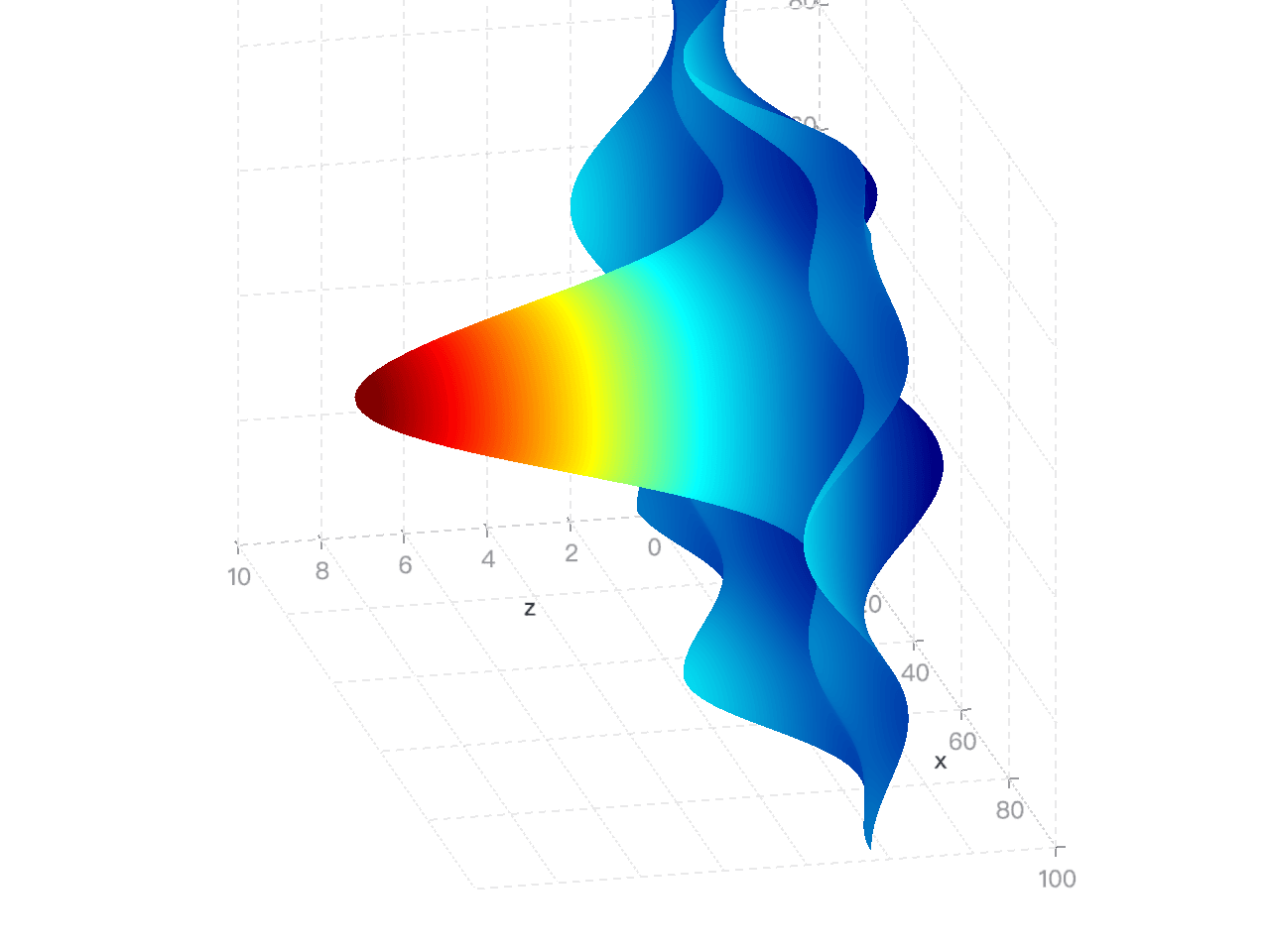 ```ts
import { CameraType } from '@antv/g';
import { Renderer as WebGLRenderer } from '@antv/g-webgl';
import { Plugin as ThreeDPlugin } from '@antv/g-plugin-3d';
import { Plugin as ControlPlugin } from '@antv/g-plugin-control';
import { Runtime, corelib, extend } from '@antv/g2';
import { threedlib } from '@antv/g2-extension-3d';
import diric from 'dirichlet';
// Set the width/height to 100.
const size = 100;
const points: { x: number; y: number; z: number }[] = [];
for (let i = 0; i < size + 1; i++) {
for (let j = 0; j < size + 1; j++) {
points.push({
x: i,
y: j,
z:
0.1 *
size *
diric(5, (5.0 * (i - size / 2)) / size) *
diric(5, (5.0 * (j - size / 2)) / size),
});
}
}
// Create a WebGL renderer.
const renderer = new WebGLRenderer();
renderer.registerPlugin(new ThreeDPlugin());
renderer.registerPlugin(new ControlPlugin());
// Customize our own Chart with threedlib.
const Chart = extend(Runtime, { ...corelib(), ...threedlib() });
const chart = new Chart({
container: 'container',
renderer,
width: 600,
height: 600,
depth: 300, // Define the depth of the chart.
});
chart
.surface3D()
.data(points)
.encode('x', 'x')
.encode('y', 'y')
.encode('z', 'z')
.coordinate({ type: 'cartesian3D' })
.scale('x', { nice: true })
.scale('y', { nice: true })
.scale('z', { nice: true })
.legend(false)
.axis('x', { gridLineWidth: 1 })
.axis('y', { gridLineWidth: 1, titleBillboardRotation: -Math.PI / 2 })
.axis('z', { gridLineWidth: 1 });
chart.render().then(() => {
const { canvas } = chart.getContext();
const camera = canvas.getCamera();
// Use perspective projection mode.
camera.setPerspective(0.1, 3000, 45, 600 / 600);
camera.rotate(30, 30, 0);
camera.dolly(60);
camera.setType(CameraType.ORBITING);
});
```
---
**Setting Attributes**
### attr()
Get or set the chart's configuration options. Below is a list of supported properties:
| Property | Description | Type |
| ------------- | ------------------------------------------------------------------------------------- | ------- |
| class | CSS class name | string |
| x | Horizontal position, typically used to adjust a chart's placement in a composite view | number |
| y | Vertical position, typically used to adjust a chart's placement in a composite view | number |
| width | Element width | number |
| height | Element height | number |
| paddingLeft | Padding on the left | Padding |
| paddingRight | Padding on the right | Padding |
| paddingBottom | Padding at the bottom | Padding |
| paddingTop | Padding at the top | Padding |
| padding | Composite padding | Padding |
| inset | Overall spacing (inset) width | number |
| insetLeft | Spacing (inset) width on the left | number |
| insetBottom | Spacing (inset) width at the bottom | number |
| insetTop | Spacing (inset) width at the top | number |
| insetRight | Spacing (inset) width on the right | number |
| margin | Composite margin | number |
| marginLeft | Margin on the left | number |
| marginBottom | Margin at the bottom | number |
| marginTop | Margin at the top | number |
| marginRight | Margin on the right | number |
| frame | Whether to display a border | boolean |
| zIndex | Layer stacking order | number |
| clip | Whether to clip overflowing content | boolean |
```js
// Get configuration options
const point = chart.point();
console.log(point.attr());
// Set configuration options
point.attr('padding', 0);
```
### data()
Set the data for the mark. Supports various data sources and transformations. See [data](/en/manual/core/data/overview/) for more details.
```js
chart.data({
type: 'fetch',
value: 'https://assets.antv.antgroup.com/g2/athletes.json',
});
chart.interval().data([
{ genre: 'Sports', sold: 275 },
{ genre: 'Strategy', sold: 115 },
{ genre: 'Action', sold: 120 },
{ genre: 'Shooter', sold: 350 },
{ genre: 'Other', sold: 150 },
]);
```
### encode()
Define how data fields are encoded to visual channels. See [encode](/en/manual/core/encode/) for more details.
```js
chart
.interval()
.encode('x', 'civilization')
.encode('y', ['start', 'end'])
.encode('color', 'region');
chart.facetCircle().encode('position', 'month');
chart.encode('x', 'year').encode('y', 'value');
```
### scale()
Define the scale of data for each channel. See [scale](/en/manual/core/scale/overview/) for more details.
```js
chart.scale('color', { type: 'ordinal', range: ['#ca8861', '#675193'] });
chart.line().scale('y', {
domain: [0, 1],
});
```
### legend()
Configure the legend for a mark. See [legend](/en/manual/component/legend/) for more details.
```js
// Disable legend for the color channel
chart.legend('color', false);
chart
.interval()
.legend('color', { labelFormatter: (d) => (d === 1 ? 'Male' : 'Female') });
```
### tooltip()
Configure tooltips for a mark. See [tooltip](/en/manual/component/tooltip/) for more details.
```js
chart.interval().tooltip({ channel: 'y', valueFormatter: '.0%' });
// Disable tooltip for link marks
chart.link().tooltip(false);
```
### axis()
Configure the axis of a mark. See [axis](/en/manual/component/axis/) for more details.
```js
chart
.interval()
.axis('y', { labelFormatter: '~s' })
.axis('x', { labelTransform: 'rotate(90)' });
chart.axis('y', { title: false });
```
### slider()
Set sliders for the chart to enable panning or zooming. See [slider](/en/manual/component/slider/) for more details.
```js
chart
.point()
.slider('x', { labelFormatter: (d) => d.toFixed(1) })
.slider('y', { labelFormatter: (d) => d.toFixed(1) });
chart.slider('y', true).slider('x', true);
```
### label()
Add labels to a mark. See [label](/en/manual/component/label/) for more details.
```js
chart
.interval()
.label({
text: (d, i) => (i !== 0 ? '转换率' : ''),
position: 'top-right',
textAlign: 'left',
textBaseline: 'middle',
fill: '#aaa',
dx: 60,
})
.label({
text: (d, i, data) =>
i !== 0 ? r(data[i - 1]['value'], data[i]['value']) : '',
position: 'top-right',
textAlign: 'left',
textBaseline: 'middle',
dx: 60,
dy: 15,
});
chart.interval().label({
text: 'id',
position: 'spider',
connectorDistance: 0,
fontWeight: 'bold',
textBaseline: 'bottom',
textAlign: (d) => (['c', 'sass'].includes(d.id) ? 'end' : 'start'),
dy: -4,
});
```
### labelTransform()
Configures label transformations for the chart. See [label](/en/manual/component/label/) for details.
```js
chart
.labelTransform({ type: 'overlapHide' })
.labelTransform({ type: 'contrastReverse' });
chart.labelTransform([{ type: 'overlapHide' }, { type: 'contrastReverse' }]);
```
### style()
Sets the styles for the chart elements. See [style](/en/manual/core/style/) for details.
```js
chart.rect().style('inset', 0.5);
chart.liquid().data(0.3).style({
outlineBorder: 4,
outlineDistance: 8,
waveLength: 128,
});
```
### theme()
Applies a theme to the chart. See [theme](/en/manual/core/theme/overview/) for details.
```js
chart.theme({ type: 'academy' });
chart.theme({
type: 'classicDark',
view: {
viewFill: '#141414',
},
}); // Apply dark theme.
```
### interaction()
Configures interactions for the chart. See [interaction](/en/manual/core/interaction/overview/) for details.
```js
// Disable the legendFilter interaction
chart.interaction('legendFilter', false);
chart.line().interaction('tooltip', {
render: (event, { items }) => {
const target = event.target;
const format = (item) => `${item.name}: ${item.value}`;
if (target.className === 'g2-tooltip-marker') {
const color = target.style.fill;
const item = items.find((i) => i.color === color);
return format(item);
}
return items.map(format).join('
```ts
import { CameraType } from '@antv/g';
import { Renderer as WebGLRenderer } from '@antv/g-webgl';
import { Plugin as ThreeDPlugin } from '@antv/g-plugin-3d';
import { Plugin as ControlPlugin } from '@antv/g-plugin-control';
import { Runtime, corelib, extend } from '@antv/g2';
import { threedlib } from '@antv/g2-extension-3d';
import diric from 'dirichlet';
// Set the width/height to 100.
const size = 100;
const points: { x: number; y: number; z: number }[] = [];
for (let i = 0; i < size + 1; i++) {
for (let j = 0; j < size + 1; j++) {
points.push({
x: i,
y: j,
z:
0.1 *
size *
diric(5, (5.0 * (i - size / 2)) / size) *
diric(5, (5.0 * (j - size / 2)) / size),
});
}
}
// Create a WebGL renderer.
const renderer = new WebGLRenderer();
renderer.registerPlugin(new ThreeDPlugin());
renderer.registerPlugin(new ControlPlugin());
// Customize our own Chart with threedlib.
const Chart = extend(Runtime, { ...corelib(), ...threedlib() });
const chart = new Chart({
container: 'container',
renderer,
width: 600,
height: 600,
depth: 300, // Define the depth of the chart.
});
chart
.surface3D()
.data(points)
.encode('x', 'x')
.encode('y', 'y')
.encode('z', 'z')
.coordinate({ type: 'cartesian3D' })
.scale('x', { nice: true })
.scale('y', { nice: true })
.scale('z', { nice: true })
.legend(false)
.axis('x', { gridLineWidth: 1 })
.axis('y', { gridLineWidth: 1, titleBillboardRotation: -Math.PI / 2 })
.axis('z', { gridLineWidth: 1 });
chart.render().then(() => {
const { canvas } = chart.getContext();
const camera = canvas.getCamera();
// Use perspective projection mode.
camera.setPerspective(0.1, 3000, 45, 600 / 600);
camera.rotate(30, 30, 0);
camera.dolly(60);
camera.setType(CameraType.ORBITING);
});
```
---
**Setting Attributes**
### attr()
Get or set the chart's configuration options. Below is a list of supported properties:
| Property | Description | Type |
| ------------- | ------------------------------------------------------------------------------------- | ------- |
| class | CSS class name | string |
| x | Horizontal position, typically used to adjust a chart's placement in a composite view | number |
| y | Vertical position, typically used to adjust a chart's placement in a composite view | number |
| width | Element width | number |
| height | Element height | number |
| paddingLeft | Padding on the left | Padding |
| paddingRight | Padding on the right | Padding |
| paddingBottom | Padding at the bottom | Padding |
| paddingTop | Padding at the top | Padding |
| padding | Composite padding | Padding |
| inset | Overall spacing (inset) width | number |
| insetLeft | Spacing (inset) width on the left | number |
| insetBottom | Spacing (inset) width at the bottom | number |
| insetTop | Spacing (inset) width at the top | number |
| insetRight | Spacing (inset) width on the right | number |
| margin | Composite margin | number |
| marginLeft | Margin on the left | number |
| marginBottom | Margin at the bottom | number |
| marginTop | Margin at the top | number |
| marginRight | Margin on the right | number |
| frame | Whether to display a border | boolean |
| zIndex | Layer stacking order | number |
| clip | Whether to clip overflowing content | boolean |
```js
// Get configuration options
const point = chart.point();
console.log(point.attr());
// Set configuration options
point.attr('padding', 0);
```
### data()
Set the data for the mark. Supports various data sources and transformations. See [data](/en/manual/core/data/overview/) for more details.
```js
chart.data({
type: 'fetch',
value: 'https://assets.antv.antgroup.com/g2/athletes.json',
});
chart.interval().data([
{ genre: 'Sports', sold: 275 },
{ genre: 'Strategy', sold: 115 },
{ genre: 'Action', sold: 120 },
{ genre: 'Shooter', sold: 350 },
{ genre: 'Other', sold: 150 },
]);
```
### encode()
Define how data fields are encoded to visual channels. See [encode](/en/manual/core/encode/) for more details.
```js
chart
.interval()
.encode('x', 'civilization')
.encode('y', ['start', 'end'])
.encode('color', 'region');
chart.facetCircle().encode('position', 'month');
chart.encode('x', 'year').encode('y', 'value');
```
### scale()
Define the scale of data for each channel. See [scale](/en/manual/core/scale/overview/) for more details.
```js
chart.scale('color', { type: 'ordinal', range: ['#ca8861', '#675193'] });
chart.line().scale('y', {
domain: [0, 1],
});
```
### legend()
Configure the legend for a mark. See [legend](/en/manual/component/legend/) for more details.
```js
// Disable legend for the color channel
chart.legend('color', false);
chart
.interval()
.legend('color', { labelFormatter: (d) => (d === 1 ? 'Male' : 'Female') });
```
### tooltip()
Configure tooltips for a mark. See [tooltip](/en/manual/component/tooltip/) for more details.
```js
chart.interval().tooltip({ channel: 'y', valueFormatter: '.0%' });
// Disable tooltip for link marks
chart.link().tooltip(false);
```
### axis()
Configure the axis of a mark. See [axis](/en/manual/component/axis/) for more details.
```js
chart
.interval()
.axis('y', { labelFormatter: '~s' })
.axis('x', { labelTransform: 'rotate(90)' });
chart.axis('y', { title: false });
```
### slider()
Set sliders for the chart to enable panning or zooming. See [slider](/en/manual/component/slider/) for more details.
```js
chart
.point()
.slider('x', { labelFormatter: (d) => d.toFixed(1) })
.slider('y', { labelFormatter: (d) => d.toFixed(1) });
chart.slider('y', true).slider('x', true);
```
### label()
Add labels to a mark. See [label](/en/manual/component/label/) for more details.
```js
chart
.interval()
.label({
text: (d, i) => (i !== 0 ? '转换率' : ''),
position: 'top-right',
textAlign: 'left',
textBaseline: 'middle',
fill: '#aaa',
dx: 60,
})
.label({
text: (d, i, data) =>
i !== 0 ? r(data[i - 1]['value'], data[i]['value']) : '',
position: 'top-right',
textAlign: 'left',
textBaseline: 'middle',
dx: 60,
dy: 15,
});
chart.interval().label({
text: 'id',
position: 'spider',
connectorDistance: 0,
fontWeight: 'bold',
textBaseline: 'bottom',
textAlign: (d) => (['c', 'sass'].includes(d.id) ? 'end' : 'start'),
dy: -4,
});
```
### labelTransform()
Configures label transformations for the chart. See [label](/en/manual/component/label/) for details.
```js
chart
.labelTransform({ type: 'overlapHide' })
.labelTransform({ type: 'contrastReverse' });
chart.labelTransform([{ type: 'overlapHide' }, { type: 'contrastReverse' }]);
```
### style()
Sets the styles for the chart elements. See [style](/en/manual/core/style/) for details.
```js
chart.rect().style('inset', 0.5);
chart.liquid().data(0.3).style({
outlineBorder: 4,
outlineDistance: 8,
waveLength: 128,
});
```
### theme()
Applies a theme to the chart. See [theme](/en/manual/core/theme/overview/) for details.
```js
chart.theme({ type: 'academy' });
chart.theme({
type: 'classicDark',
view: {
viewFill: '#141414',
},
}); // Apply dark theme.
```
### interaction()
Configures interactions for the chart. See [interaction](/en/manual/core/interaction/overview/) for details.
```js
// Disable the legendFilter interaction
chart.interaction('legendFilter', false);
chart.line().interaction('tooltip', {
render: (event, { items }) => {
const target = event.target;
const format = (item) => `${item.name}: ${item.value}`;
if (target.className === 'g2-tooltip-marker') {
const color = target.style.fill;
const item = items.find((i) => i.color === color);
return format(item);
}
return items.map(format).join('
');
},
});
```
### animate()
Configures animations for the chart. See [animation](/en/manual/core/animate/overview/) for details.
```js
chart
.interval()
.animate('enter', { type: 'fadeIn', duration: 1000 })
.animate('exit', { type: 'fadeOut', duration: 2000 });
// Disable animations
chart.animate(false);
```
### scrollbar()
Adds scrollbars to the chart. See [scrollbar](/en/manual/component/scrollbar/) for details.
```js
chart.line().scrollbar('x', {}).scrollbar('y', { value: 0.2 });
```
### title()
Sets the chart title. See [title](/en/manual/component/title/) for details.
```js
chart.title({
align: 'right',
title: 'Sold by genre, sorted by sold',
titleFontSize: 15,
subtitle: 'It shows the sales volume of each genre, sorted by sales.',
subtitleFill: 'red',
subtitleFontSize: 12,
subtitleShadowColor: 'yellow',
subtitleShadowBlur: 5,
subtitleFontStyle: 'italic',
});
chart.title('Pareto Chart of Customer Complaints');
```
### state()
Configures styles for different states of the chart. See [state](/en/manual/core/state/) for details.
```js
chart
.interval()
.state('selected', { fill: '#1783FF', stroke: 'black', strokeWidth: 1 })
.state('unselected', { fill: '#ccc' });
chart.sunburst().state({
active: { zIndex: 2, stroke: 'red' },
inactive: { zIndex: 1, stroke: '#fff' },
});
```
### transform()
Applies data transformations to the chart. See [transform](/en/manual/core/transform/overview/) for details.
```js
chart
.interval()
.data({
type: 'fetch',
value: 'https://assets.antv.antgroup.com/g2/world-history.json',
})
.transform({ type: 'sortX', by: 'y' })
.transform({ type: 'sortColor', by: 'y', reducer: 'min' });
chart.area().transform([{ type: 'stackY' }, { type: 'normalizeY' }]);
```
## Rendering the Chart
### chart.render()
Triggers the rendering of the chart.
```sign
render(): void;
```
### chart.destroy()
Destroys the chart container and canvas, and unbinds all events.
```sign
destroy(): void;
```
### chart.clear()
Clears all the content drawn on the chart but does not destroy the chart. The chart instance remains usable.
```sign
clear(): void;
```
### chart.show()
Displays the graphical elements rendered by the current node.
```sign
show(): void;
```
### chart.hide()
Hides the graphical elements rendered by the current node.
```sign
hide(): void;
```
### chart.changeData()
Updates the data source for the chart and re-renders it.
```sign
changeData(data: any): void;
```
### chart.changeSize()
Changes the width and height of the chart and re-renders it.
```sign
changeSize(width: number, height: number): void;
```
### chart.forceFit()
Automatically adjusts the canvas size to fit its parent DOM container and re-renders the chart.
```sign
forceFit(): void;
```
### mark.changeData()
Updates the data source for a specific mark and re-renders the chart.
```sign
changeData(data: any): void;
```
## Accessing Instances
### chart.getContainer()
Gets the HTML container of the chart.
```sign
getContainer(): HTMLElement;
```
### chart.getContext()
Returns the context information of the chart.
```sign
getContext(): G2Context;
```
You can use `getContext()` to access the chart's `document` and add custom interactions.
```js
chart.on('afterrender', () => {
const { canvas } = chart.getContext();
const { document } = canvas;
// https://github.com/antvis/G2/blob/v5/src/interaction/legendFilter.ts
const items = document.getElementsByClassName('items-item');
const datum = items.map((item) => item.__data__);
items.forEach((item, index) => {
item.addEventListener('click', (ev) => {
console.log(datum[index]);
});
});
});
```
### chart.getDataByXY(point, options)
Return the tooltip data corresponding to the coordinate point.
Usage example:
```js
chart.getDataByXY({x: 200, y: 100}, { shared: true })
```
configuration:
```ts
type Point = {
x: number;
y: number;
}
type Options = {
/**
* Whether elements with the same x share the tooltip
* @default false
*/
shared?: boolean;
}
```
### chart.getView()
Returns the view instance used during chart rendering.
```sign
getView(): G2ViewDescriptor;
```
### chart.getCoordinate()
Returns the coordinate instance used during chart rendering.
```sign
getCoordinate(): Coordinate;
```
### chart.getTheme()
Returns the theme instance applied during chart rendering.
```sign
getTheme(): G2Theme;
```
### chart.getGroup()
Returns the canvas group instance used during chart rendering.
```sign
getGroup(): DisplayObject;
```
### chart.getScale()
Returns all the scale instances used during chart rendering.
```sign
getScale(): Record;
```
### chart.getScaleByChannel()
Finds and returns the scale instance corresponding to a specific channel name during chart rendering.
```sign
getScaleByChannel(channel: string): Scale;
```
### view.getView()
Returns the view instance used during view rendering.
```sign
getView(): G2ViewDescriptor;
```
### view.getCoordinate()
Returns the coordinate instance used during view rendering.
```sign
getCoordinate(): Coordinate;
```
### view.getTheme()
Returns the theme instance applied during view rendering.
```sign
getTheme(): G2Theme;
```
### view.getGroup()
Returns the canvas group instance used during view rendering.
```sign
getGroup(): DisplayObject;
```
### view.getScale()
Returns all the scale instances used during view rendering.
```sign
getScale(): Record;
```
### view.getScaleByChannel()
Finds and returns the scale instance corresponding to a specific channel name during view rendering.
```sign
getScaleByChannel(channel: string): Scale;
```
### mark.getGroup()
Returns the canvas group instance used during mark rendering.
```sign
getGroup(): DisplayObject;
```
### mark.getScale()
Returns all the scale instances used during mark rendering.
```sign
getScale(): Record;
```
### mark.getScaleByChannel()
Finds and returns the scale instance corresponding to a specific channel name during mark rendering.
```sign
getScaleByChannel(channel: string): Scale;
```
## Node Operations
All nodes that inherit from the `Node` type can use various node operation methods, such as the return value of the `getNodeByKey()` method.
### node.getNodesByType()
Finds all child nodes of a certain type.
```sign
getNodesByType(type: string): Node[];
```
Here is an example of finding the first `rect` shape:
```js
chart.getNodesByType('rect')[0].changeData(data);
```
### node.getNodeByKey()
Finds a child node of the current node by its key.
```sign
getNodeByKey(key: string): Node;
```
### node.append()
Creates a new `Node` and appends it to the chart as a child node.
```sign
append(Ctor: new (value: Record) => Node): Node;
```
### node.remove()
Removes the current node from its parent.
```sign
remove(): Node;
```
### node.call()
Applies a specified callback function to the node value.
```sign
call(callback: (node: this, ...params: any[]) => any, ...params: any[]): this;
```
## Listening to and Triggering Events
### chart.on()
Listens to events on the chart.
```sign
on(event: string, callback: (...args: any[]) => any, once?: boolean): this;
```
**Lifecycle Events**
| Event | Description |
| ------------------ | --------------------------------------------------------- |
| `beforerender` | Triggered before the chart is rendered. |
| `afterrender` | Triggered after the chart is rendered. |
| `beforepaint` | Triggered after layout calculations but before rendering. |
| `afterpaint` | Triggered after the chart is drawn. |
| `beforechangedata` | Triggered before the chart updates its data. |
| `afterchangedata` | Triggered after the chart updates its data. |
| `beforechangesize` | Triggered before the chart updates its size. |
| `afterchangesize` | Triggered after the chart updates its size. |
| `beforedestroy` | Triggered before the chart is destroyed. |
| `afterdestroy` | Triggered after the chart is destroyed. |
You can declare lifecycle events using `chart.on()`. For example:
```js
chart.on('afterrender', (e) => {
console.log('Chart has been rendered!');
});
```
### chart.once()
Listens for events on the chart, but only triggers once.
```sign
once(event: string, callback: (...args: any[]) => any): this;
```
### chart.emit()
Triggers an event on the chart.
```sign
emit(event: string, ...args: any[]): this;
```
### chart.off()
Unbinds event listeners from the chart.
```sign
off(event?: string, callback?: (...args: any[]) => any): void;
```
For more detailed information about events in G2, see [Events](/en/manual/core/event/).
---
## Custom Extensions
### extend()
Extends the chart library by importing additional components.
```sign
extend(Runtime: new (options: RuntimeOptions) => Runtime, library: Library): Chart;
```
To reduce the size of the main G2 package, some advanced chart components are not included by default. Using `extend`, you can import extension libraries and even 3D chart libraries to unlock more charting capabilities.
```js
import { plotlib } from '@antv/g2-extension-plot';
import { Runtime, corelib, extend } from '@antv/g2';
const Chart = extend(Runtime, { ...corelib(), ...plotlib() });
const chart = new Chart({
container: 'container',
autoFit: true,
});
chart
.sunburst()
.data({
type: 'fetch',
value: 'https://gw.alipayobjects.com/os/antvdemo/assets/data/sunburst.json',
})
.encode('value', 'sum')
.encode('color', 'label');
chart.render();
```
```js
import { CameraType } from '@antv/g';
import { Renderer as WebGLRenderer } from '@antv/g-webgl';
import { Plugin as ThreeDPlugin, DirectionalLight } from '@antv/g-plugin-3d';
import { Plugin as ControlPlugin } from '@antv/g-plugin-control';
import { Runtime, corelib, extend } from '@antv/g2';
import { threedlib } from '@antv/g2-extension-3d';
// Create a WebGL renderer.
const renderer = new WebGLRenderer();
renderer.registerPlugin(new ThreeDPlugin());
renderer.registerPlugin(new ControlPlugin());
// Customize our own Chart with threedlib.
const Chart = extend(Runtime, { ...corelib(), ...threedlib() });
const chart = new Chart({
container: 'container',
renderer,
depth: 400, // Set chart depth
});
chart
.point3D()
.data({
type: 'fetch',
value:
'https://gw.alipayobjects.com/os/bmw-prod/2c813e2d-2276-40b9-a9af-cf0a0fb7e942.csv',
})
.encode('x', 'Horsepower')
.encode('y', 'Miles_per_Gallon')
.encode('z', 'Weight_in_lbs')
.encode('color', 'Origin')
.encode('size', 'Cylinders')
.encode('shape', 'sphere')
.coordinate({ type: 'cartesian3D' })
.scale('x', { nice: true })
.scale('y', { nice: true })
.scale('z', { nice: true })
.legend(false)
.axis('x', { gridLineWidth: 2 })
.axis('y', { gridLineWidth: 2, titleBillboardRotation: -Math.PI / 2 })
.axis('z', { gridLineWidth: 2 });
chart.render().then(() => {
const { canvas } = chart.getContext();
const camera = canvas.getCamera();
camera.setPerspective(0.1, 5000, 45, 640 / 480);
camera.setType(CameraType.ORBITING);
// Add a directional light into the scene.
const light = new DirectionalLight({
style: {
intensity: 3,
fill: 'white',
direction: [-1, 0, 1],
},
});
canvas.appendChild(light);
});
```
### register()
Registers custom components into the chart library.
```sign
register(key: `${G2ComponentNamespaces | 'symbol'}.${any}`, component: G2Component | SymbolFactor): void;
```
G2 is highly extensible: almost all visualization components can be customized. To start, you need to use `register` to add custom visual components.
#### Example: Custom Legend Marker
Below is an example of registering a custom square-shaped legend marker:
```ts
import { Chart, register, type SymbolFactor } from '@antv/g2';
const customSquare = Object.assign>(
(x, y, r) => {
const radius = r / 2;
return [
['M', x + radius, y - r],
['L', x - radius, y - r],
['A', radius, radius, 0, 0, 0, x - r, y - radius],
['L', x - r, y + radius],
['A', radius, radius, 0, 0, 0, x - radius, y + r],
['L', x + radius, y + r],
['A', radius, radius, 0, 0, 0, x + r, y + radius],
['L', x + r, y - radius],
['A', radius, radius, 0, 0, 0, x + radius, y - r],
['Z'],
];
},
{
// For a hollow design, use ['stroke', 'lineWidth']
style: ['fill'],
},
);
register('symbol.customSquare', customSquare);
const chart = new Chart({
container: 'container',
});
const data = [
{ genre: 'Sports', sold: 275 },
{ genre: 'Strategy', sold: 115 },
{ genre: 'Action', sold: 120 },
{ genre: 'Shooter', sold: 350 },
{ genre: 'Other', sold: 150 },
];
const colorField = 'genre';
chart
.interval()
.data(data)
.encode('x', 'genre')
.encode('y', 'sold')
.encode('color', colorField)
.legend({
color: {
itemMarker: 'customSquare',
},
});
chart.render();
```
#### Example: Custom Bar Chart Shape
You can also create unique bar chart shapes:
```ts
import { Chart, register } from '@antv/g2';
register('shape.interval.column25d', myColumn);
const data = [
{ year: '1951', sales: 38 },
{ year: '1952', sales: 52 },
{ year: '1956', sales: 61 },
{ year: '1957', sales: 145 },
{ year: '1958', sales: 48 },
{ year: '1959', sales: 38 },
{ year: '1960', sales: 38 },
{ year: '1962', sales: 38 },
{ year: '1963', sales: 65 },
{ year: '1964', sales: 122 },
{ year: '1967', sales: 132 },
{ year: '1968', sales: 144 },
];
const chart = new Chart({
container: 'container',
autoFit: true,
});
chart.data(data);
chart
.interval()
.encode('x', 'year')
.encode('y', 'sales')
.style('shape', 'column25d')
.scale('x', { padding: 0.3 });
chart.legend('year', {
width: 10,
});
chart.render();
/**
* Draw 2.5d column shape.
*/
function myColumn({ fill, stroke }, context) {
return (points) => {
const x3 = points[1][0] - points[0][0];
const x4 = x3 / 2 + points[0][0];
const { document } = context;
const g = document.createElement('g', {});
const r = document.createElement('polygon', {
style: {
points: [
[points[0][0], points[0][1]],
[x4, points[1][1] + 8],
[x4, points[3][1] + 8],
[points[3][0], points[3][1]],
],
fill: 'rgba(114, 177, 207, 0.5)',
stroke: 'rgba(0,0,0,0.1)',
strokeOpacity: 0.1,
inset: 30,
},
});
const p = document.createElement('polygon', {
style: {
points: [
[x4, points[1][1] + 8],
[points[1][0], points[1][1]],
[points[2][0], points[2][1]],
[x4, points[2][1] + 8],
],
fill: 'rgba(126, 212, 236, 0.5)',
stroke: 'rgba(0,0,0,0.3)',
strokeOpacity: 0.1,
},
});
const t = document.createElement('polygon', {
style: {
points: [
[points[0][0], points[0][1]],
[x4, points[1][1] - 8],
[points[1][0], points[1][1]],
[x4, points[1][1] + 8],
],
fill: 'rgba(173, 240, 255, 0.65)',
},
});
g.appendChild(r);
g.appendChild(p);
g.appendChild(t);
return g;
};
}
```